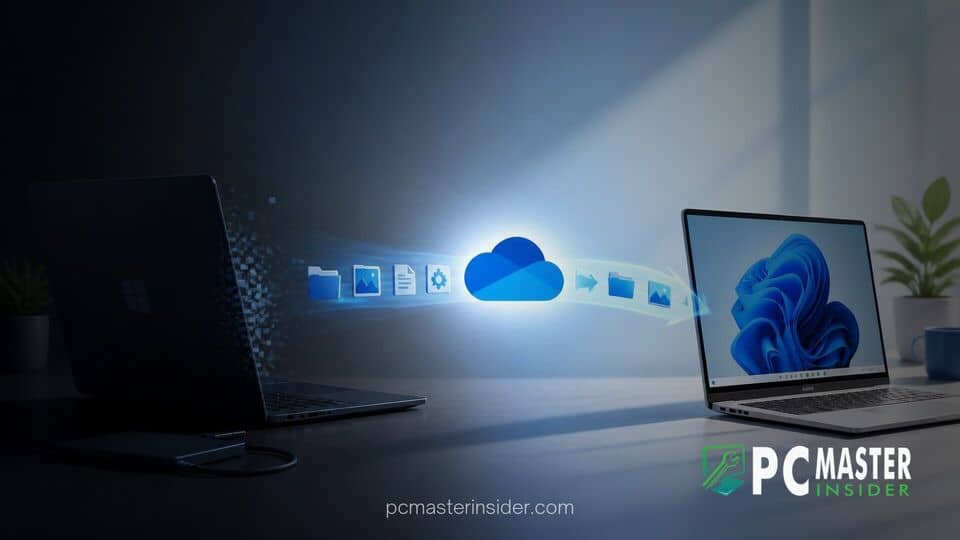
Microsoft has officially retired its local network PC-to-PC transfer feature in Windows 11, steering users back toward its cloud-based Windows Backup and OneDrive infrastructure. The native migration utility previously allowed users to move personal files and basic settings across a local network without uploading data to external servers.
By shifting focus entirely to cloud synchronization, Microsoft aims to streamline the setup process for new devices while encouraging greater adoption of its cloud ecosystem. However, the move has reignited discussions regarding offline backups, network efficiency, and cloud storage caps for everyday users.
Deprecation of Windows 11 Local PC-to-PC File Transfer
The decision marks the end of a short-lived native utility that allowed users to pair two Windows machines over a local Wi-Fi or LAN network. Originally introduced in Insider preview builds as an extension of the Windows Backup experience, the local transfer tool generated interest among users seeking a direct connection between devices. By linking two computers with a secure pairing code, users could move documents, pictures, videos, and personalized system settings without relying on an active internet upload stream.
Despite its potential, updated support documentation confirms that the direct migration feature is no longer supported in modern Windows 11 builds. Rather than maintaining parallel migration pathways, Microsoft has updated its official guidelines to recommend the standard Windows Backup suite. For users who relied on direct device-to-device transfers over home or office networks, the change leaves cloud restoration as the primary native option built directly into the operating system setup process.
Shift Towards OneDrive Cloud Data Migration
With the local migration option removed, Microsoft is doubling down on OneDrive as the exclusive engine for native operating system data transfers. Under the standard Windows Backup system, personal folders such as Documents, Desktop, and Pictures are synchronized to cloud servers linked to a user's Microsoft account. When setting up a fresh machine, logging in retrieves those preferences, layout arrangements, and cloud-synced files automatically.
This cloud-first vision aligns with Microsoft's recent platform strategy across desktop and enterprise software. The company has consistently integrated cloud connectivity deeper into the OS, similar to how it expanded tools like Windows 365 Cloud PC for Windows 11 developers to unify cloud and desktop environments. For most everyday consumers, cloud restoration provides an automated experience that works anywhere without requiring both physical computers to be powered on simultaneously in the same room.
Consequences for Offline Backups and Local Networks
While cloud migration offers convenience, the retirement of the direct transfer tool presents practical challenges for specific user groups. The most immediate concern involves cloud storage limits. Standard free Microsoft accounts include 5GB of OneDrive storage. Users attempting to transfer high-definition photo libraries or massive video archives beyond that quota must either subscribe to Microsoft 365 or selectively exclude folders from the automated cloud backup.
Bandwidth constraint is another factor affecting users in areas with slow or metered internet connections. Transferring hundreds of gigabytes of data over a high-speed local Wi-Fi router takes a fraction of the time required to upload that same volume to remote servers and download it again onto a new PC. Furthermore, privacy-conscious users and enterprise IT administrators who prefer keeping data entirely within local network firewalls must now re-evaluate their deployment workflows.
The requirement to route transfers through online accounts also highlights Microsoft's continued push toward account integration. While setup workarounds exist, such as the Windows 11 setup flaw that allows local account creation, native system utilities increasingly depend on cloud services tied to an active online identity.
Third-Party Alternatives for Local Windows Data Transfer
For users who prefer to bypass cloud services entirely, third-party software vendors and manual methods remain the primary alternatives. Popular utilities such as EaseUS Todo PCTrans, Laplink PCmover, and open-source network copying tools continue to offer robust local computer-to-computer transfer functionality over LAN cables or private Wi-Fi connections.
Additionally, hardware-based migrations remain a staple for power users. Utilizing external solid-state drives, USB flash storage, or Network-Attached Storage (NAS) units allows users to manually move personal directories between machines without incurring subscription costs or internet bandwidth overhead. While these methods lack the single-click setup integration of native OS tools, they provide complete control over data locality and privacy.
As Microsoft refines its operating system roadmap—alongside anticipated Windows 11 performance upgrades for File Explorer and system responsiveness—the removal of local PC-to-PC transfer confirms that cloud integration will remain at the heart of the modern Windows ecosystem.