
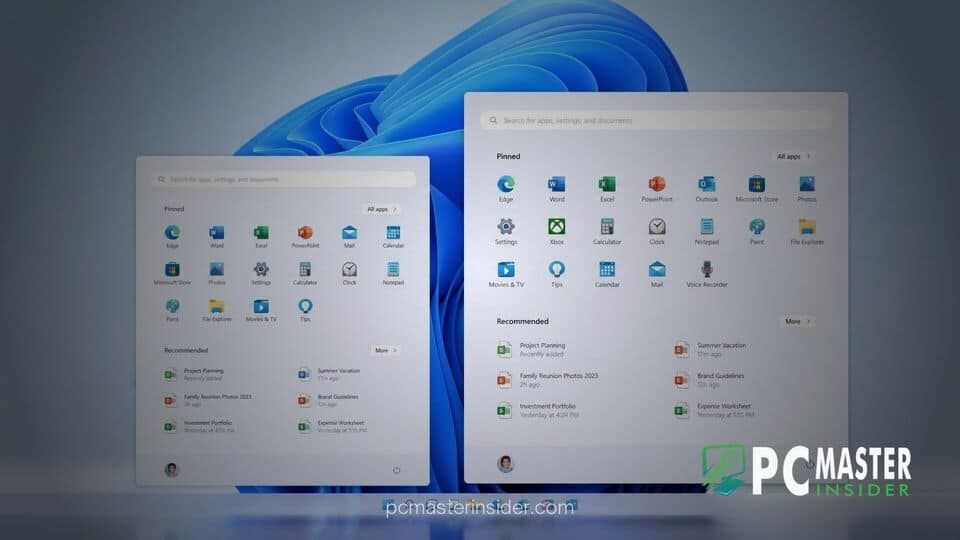
Microsoft has released a new Windows 11 Insider Preview build that gives users explicit control over the footprint of the Start menu, addressing long-standing requests for greater interface personalization. Testers enrolled in preview channels can now choose between dedicated Small and Large sizing options alongside the default Automatic behavior.
This layout adjustment arrives as part of Microsoft's broader effort to refine user environment controls across desktop platforms. Alongside layout sizing, the build introduces granular toggles for individual sections, allowing users to streamline what appears when opening the central navigation hub.
Microsoft Expands Customization in Windows 11 Insider Start Menu Size Options
The addition of explicit sizing options inside the Windows 11 Insider preview builds directly targets user feedback regarding interface flexibility. Previously, the Start menu adjusted its overall dimensions dynamically based on screen resolution and scaling percentages. While automatic adaptation worked well on standard desktop displays, users on compact laptops, high-DPI tablets, or ultra-wide monitors often found the fixed layout either overly cramped or unnecessarily large.
Under the new implementation, selecting the Small setting reduces the total footprint of the Start container on screen. This layout displays a tighter grid of pinned applications, giving users maximum visibility over open background windows while reducing unnecessary desktop obstruction. Conversely, choosing the Large option expands the overall container dimensions, making room for more pinned icons and expanded section listings without forcing users to scroll through multiple pages.
Small and Large Layout Options for Windows 11 Start
The core structural changes in the updated Start menu revolve around layout density and vertical height. The Small configuration focuses on minimal desktop coverage, which is particularly beneficial when running side-by-side productivity tools. By comparison, the Large layout caters to power users who prefer a comprehensive app dashboard with immediate access to numerous shortcuts.
In addition to dimensions, Microsoft has reorganized the underlying Start settings page. The Recommended section has been renamed to Recent to more accurately reflect its contents. Furthermore, independent section-level toggles now permit users to hide or show Pinned, Recent, and All app categories individually. This means users can curate an ultra-minimalist menu showing only pinned shortcuts or exclusively recent files.
Automatic Scaling and Layout Flexibility
For users who prefer not to manage visual dimensions manually, the system retains the default Automatic setting. Automatic mode relies on display metrics, OS scale factors, and connected screen configurations to establish standard proportions. However, manual choices now override display-based calculations, remaining consistent when switching between different external monitors or docking stations.
Microsoft has also added privacy-oriented adjustments to the interface. A dedicated toggle inside settings lets users hide their display name and profile picture on the Start surface, helping protect personal information during screen-sharing sessions or public broadcasts. Related adjustments in experimental channels also continue to touch surrounding components, such as testing alternate taskbar locations and adding quick settings tools for connected devices.
How to Switch Start Menu Sizes in Windows 11 Settings
Changing the display size of the Start menu in supported Insider builds is a straightforward process managed entirely within the primary OS settings hub. Once the build is installed, users can adjust their layout by following these steps:
- Open the Settings application using the keyboard shortcut Windows Key + I.
- Select Personalization from the left-hand navigation sidebar.
- Click on the Start menu tab on the main right-hand panel.
- Locate the Start menu size dropdown setting.
- Choose between Small, Automatic, or Large according to your display preference.
Changes apply instantly without requiring a system restart or Explorer process reload. Users who want to further simplify their desktop experience can also turn off specific sections like Recent items or explore separate accessibility toggles like Magnifier contrast adjustments elsewhere in Settings.
Testing Progress and Expected General Availability
The custom Start menu layout controls are currently rolling out across preview channels through a Controlled Feature Rollout (CFR) mechanism. As with most preview features, Microsoft monitors feedback submitted via the Feedback Hub to evaluate visual stability, performance impact, and overall user satisfaction prior to broader deployment.
This update reflects a continuous shift in Microsoft's desktop strategy toward user-driven personalization. After receiving criticism in earlier Windows 11 updates for rigid interface designs, the development team has systematically reintroduced customization features, ranging from streamlined context menus to expanded layout options. While no strict public release timeline has been announced for stable builds, successful testing in preview channels typically precedes general availability in upcoming annual feature updates.
The addition of explicit Small and Large Start menu controls gives Windows 11 users much-needed authority over their desktop workspace. By combining flexible sizing with granular section toggles and privacy features, Microsoft is delivering a refined navigation experience that accommodates diverse screen setups and personal workflows.



