
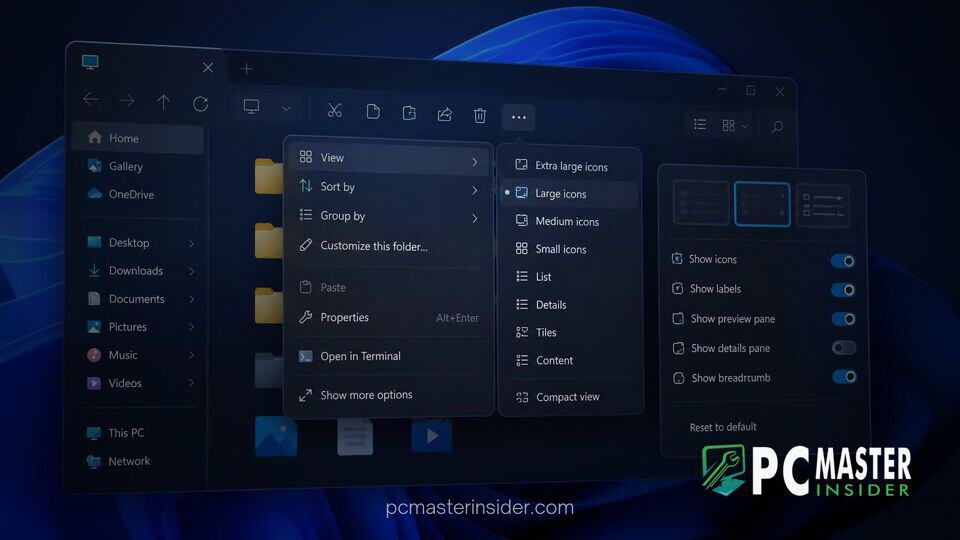
Microsoft has officially released a comprehensive overhaul of the right-click menu in File Explorer for users enrolled in the Windows Insider Beta Channel. The preview update brings dedicated customization toggles in the Settings app alongside noticeable layout refinements designed to streamline everyday workflows.
By streamlining top-level options and allowing users to customize which commands appear, Microsoft addresses one of the most long-standing complaints regarding File Explorer interface clutter. The update focuses on reducing input latency, improving predictability, and letting users tailor desktop file actions directly to their personal preferences.
Redesigned Context Menu Lands in Windows 11 Beta Channel
The latest build released to the Beta Channel introduces a modernized context menu interface in File Explorer that aims to balance clean design with rapid access to system actions. For years, the desktop operating system faced criticism over its dual-layered context menu system. When Windows 11 originally launched, Microsoft introduced a simplified right-click menu that hid traditional shell extensions behind a secondary "Show more options" toggle, adding extra mouse clicks for power users and IT professionals.
In this recent preview release, Microsoft aims to strike a practical middle ground. The updated design keeps primary file management tasks like cut, copy, rename, share, and delete readily accessible while removing redundant items that clutter the top-level view. Operating system performance has also received direct attention, with context menu render times feeling noticeably more immediate during right-click interactions. This focus on desktop responsiveness complements recent efforts across the platform, such as how Microsoft upgrades Windows 11 Bluetooth for faster AirPods pairing to minimize user waiting times.
Customizable Right-Click Options and Layout Controls
The standout addition in this update is the brand-new context menu configuration hub integrated into the main Windows 11 Settings app. Rather than relying on complex third-party shell utilities or risky registry edits, users can now explicitly turn built-in command options on or off.
Under the new customization controls, users can enable or disable classic commands such as Send to, Create shortcut, or Print. Commands like Print, which were previously omitted from the standard modern Windows 11 right-click interface, can now be easily toggled back onto the main layout depending on individual productivity needs. The menu also introduces a dedicated "Customize menu" entry directly at the bottom of the right-click interface, acting as a quick shortcut to open the corresponding configuration pane in Settings.
To ensure users are aware of these capabilities, Microsoft incorporated a new onboarding teaching tip that highlights the available layout options when users right-click a file for the first time after updating. Furthermore, users who prefer an entirely clean visual layout can disable the "Customize menu" link itself from within Settings, preventing unnecessary items from taking up visual real estate.
Faster Performance on the Settings Home Page
Accompanying the File Explorer context menu changes, Microsoft has implemented targeted performance optimizations within the Settings application. Insiders testing the build will experience reduced loading times and faster navigation when launching or returning to the Settings home page.
These core underlying improvements ensure that adjusting desktop preferences or toggling File Explorer commands feels light and instant. Microsoft has been actively refining system code across its core desktop components, similar to how the company's internal software initiatives have been evolving, as seen when Microsoft design team uses AI agents to fix Windows 11 code inconsistencies across the system interface.
How to Customize the New Right-Click Menu Settings
For Insiders running the supported Beta builds, managing the right-click menu structure requires only a few straightforward steps through the modern Windows interface:
- Access via Settings: Open the Settings app (Win + I), navigate to Personalization, and select the dedicated Context Menu section.
- Access via Direct Right-Click: Alternatively, right-click any file or folder inside File Explorer and choose Customize menu located near the bottom of the context list.
- Toggle Built-in Commands: Use the individual switches to toggle commands like Send to, Create shortcut, or Print on or off.
- Manage Shortcuts: If you prefer to hide the management option from right-click popups entirely, switch off the setting labeled Show Customize menu option.
This centralized management framework eliminates long-standing frustrations regarding unwanted context menu entries registered by software installers. In previous updates, Microsoft similarly took steps to eliminate context menu bloat, such as when Microsoft removes Copilot AI actions from Windows 11 OneDrive context menu to keep file management focused.
Impact on Windows 11 Workflow and Future Rollout Timeline
The feedback surrounding the context menu overhaul among Windows Insiders has been largely positive, particularly regarding the ability to restore preferred legacy shortcuts without cluttering the screen. Power users who rely heavily on specific tools can build a lean, customized context list that significantly improves daily efficiency.
Microsoft noted in its official Windows Insider announcement that feature concepts tested within preview channels undergo continuous evaluation. "Our goal is to make right-click feel more responsive, predictable, and personal," the Windows Insider Engineering team shared regarding the new File Explorer experience. "As we continue refining this experience with Insider feedback, we want to ensure the menu adapts seamlessly to how people work."
While currently limited to the Beta Channel, these File Explorer customization features are anticipated to roll out to the general public in upcoming cumulative updates or feature enablement packages once stability and localization testing are finalized. As Microsoft continues testing user interface modularity, users can look forward to a far more adaptable and responsive Windows 11 desktop experience.



