
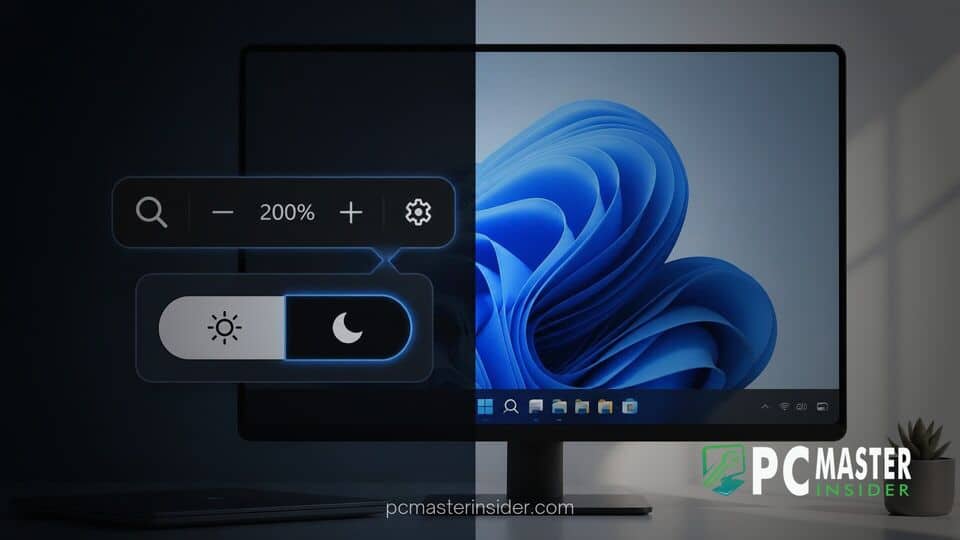
Microsoft has released Windows 11 Preview Build 29695 to early-access testing channels, introducing targeted readability improvements for users who suffer from eye strain or visual fatigue. The highlight of the update is a redesigned accessibility toolbar that lets users lower display glare without corrupting the natural colors of embedded media.
By offering an alternative to harsh system-wide color inversion, the latest preview build reflects Microsoft's broader effort to refine desktop usability. The release also packages essential stability fixes for network adapters and virtualization software.
windows 11 preview magnifier contrast toggle
The headline feature in Build 29695 is a dedicated toolbar control built directly into the native screen magnification utility. The windows 11 preview magnifier contrast toggle allows users to instantly shift surrounding applications, system windows, and text layouts into high-contrast low-glare themes while leaving photos, videos, and graphical illustrations completely untouched. This solves a longstanding complaint among low-vision users and night-owl workers who find standard bright white canvas areas uncomfortable during extended PC sessions.
New Contrast Theme Controls Introduced in Magnifier Tool
Prior to this release, desktop users attempting to diminish harsh monitor glare frequently relied on system-wide color inversion. While inversion turns white backgrounds black, it also transforms normal photographs into negative images, alters video streams, and distorts data graphics. The updated toolbar inside Magnifier replaces that blunt approach with granular interface recoloring.
When users launch Magnifier using keyboard shortcuts or the Quick Settings pane, a new contrast icon appears directly on the floating utility bar. Clicking this icon immediately applies a darkened UI overlay. Windows Insiders can select their preferred high-contrast aesthetic by navigating to Settings > Accessibility > Magnifier, where options like Night Sky, Dusk, Aquatic, and Desert are available.
For users who rely heavily on precise input gear alongside magnification, utility suites like Microsoft PowerToys 0.102 have similarly expanded cursor indicators and layout controls to streamline low-vision navigation.
Preserving Photo and Video Colors While Reducing Screen Glare
The technical advantage of the new implementation is its ability to separate interface canvas elements from media assets. Modern web browsing, video editing, and document reviewing require clear distinction between background chrome and visual content.
Under the new engine logic, Windows identifies textual components, window boundaries, and background fields, repainting them with deep dark tones. Concurrently, media render pipelines bypass the recoloring filter. As a result, streaming movies, web images, and complex financial charts maintain their true RGB color accuracy, preventing user confusion while drastically reducing eye fatigue.
Comparing Contrast Themes to Traditional Color Inversion
Microsoft emphasized that the new contrast toggle is not intended to replace existing accessibility options. Legacy color inversion remains active and fully functional for individuals who specifically depend on full-spectrum pixel reversal.
- Color Inversion: Reverses every pixel on screen, turning dark colors light and light colors dark regardless of media types.
- Magnifier Contrast Toggle: Recolors system background elements and fonts while keeping media renders in original color space.
- Standard Dark Mode: Applies dark surfaces across supported apps, but does not override light-themed legacy software or unoptimized websites.
This multi-tiered layout complements ongoing visual polish across the operating system. Recent initiatives showing Microsoft design teams using AI agents for code fixes demonstrate how rapidly the company is smoothing out visual inconsistencies across legacy and modern dialog boxes.
Virtualization Fixes and Stability Improvements in Build 29695
Beyond accessibility additions, preview build 29695 delivers a batch of essential kernel and system fixes aimed at enterprise power users and software developers.
The engineering team addressed a bug that triggered green screen system crashes (BSOD) tied to VMware virtualization software, specifically citing resolves for PFN_SHARE_COUNT memory exceptions. Furthermore, Hyper-V users running Linux virtual machines with Plan9 file protocols will no longer experience access blocks when connecting to shared host folders.
Additional bug fixes resolve intermittent network disconnects that occurred on previous test flights and eliminate excessive event logging generated by the ESENT database engine. System stability remains a priority as Microsoft continues testing future feature platform branches alongside servicing releases such as the updated Media Creation Tool ISOs.
Availability and Testing Instructions for Windows Insiders
The Magnifier contrast toggle is currently available to registered testers enrolled in the Experimental and Future Platforms preview channels. Insiders can fetch the update by opening Windows Update and downloading build 29695.1001.
To test the feature once updated:
- Press
Windows key + Plus (+)to launch the Magnifier utility. - Locate the contrast theme icon on the floating Magnifier control panel.
- Click the icon to switch between standard layout view and high-contrast view.
- Customize theme hues under
Settings > Accessibility > Magnifier.
As telemetry data and Insider feedback arrive, Microsoft plans to evaluate the contrast toggle for broader rollout in upcoming general availability feature updates. By giving users finer control over visual ergonomics without sacrificing image quality, Windows 11 continues to build out a more flexible, accessible computing environment.



