
Microsoft has released Windows 11 Insider Preview Build 26340.10013 to testers, introducing a series of interface and accessibility enhancements designed to refine daily computer navigation . The update focuses on providing power users with alternative ways to manage open application windows while extending touch and touchpad controls for accessibility features .
Among the highlighted additions are an optional vertical text list for taskbar window previews and intuitive multi-finger gesture controls for the built-in Magnifier tool . These additions sit alongside broader system refinements, including enterprise security updates and improved administrative tools across preview release channels .
Windows 11 Build 26340.10013 Replaces Taskbar Thumbnails with List View
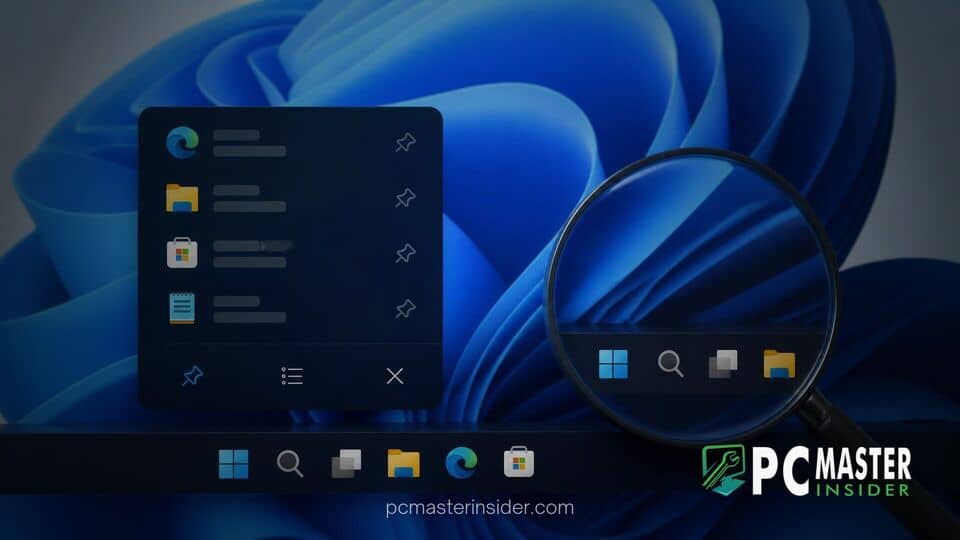
In this latest release, Microsoft introduces a dedicated setting that changes how open application windows are displayed when hovering over taskbar icons . Traditionally, hovering over a grouped application icon generates small graphical thumbnail previews of each open window. The newly tested windows 11 taskbar list view preview build functionality allows users to replace those visual thumbnails with a text-based list displaying only the full document or window titles .
This alternative view addresses long-standing feedback from users who manage extensive workflows with dozens of open windows . Visual thumbnails can quickly clutter screen real estate or obscure subtle text differences between similar documents, such as individual spreadsheets or browser tabs. The text list presentation lets users immediately identify and select the exact file or instance they need without relying on miniature screen renders .
How Taskbar List View Improves Multitasking for Power Users
For professionals who operate complex desktop environments, taskbar organization remains a primary focal point for system performance and personal productivity. When multiple instances of Microsoft Word, File Explorer, or web browsers are active simultaneously, graphical preview cards often overflow screen edges or group tightly together, requiring additional mouse movement to navigate.
The list view simplifies window selection into a clean vertical format . By presenting readable file names in a simple stacked menu, power users spend less time scanning small graphics and more time executing tasks. This change reflects Microsoft's broader effort to restore modular configuration choices across the desktop UI while maintaining modern visual standards.
Beyond workspace efficiency, interface tweaks like this often work in tandem with backend memory improvements. Similar to how Microsoft updates Task Manager memory metrics in Windows 11 to provide clearer operational visibility, providing clear UI menus reduces cognitive friction for heavy multitaskers.
New Three-Finger Magnifier Gestures for Touchpads and Touchscreens
Alongside taskbar modifications, Preview Build 26340.10013 expands accessibility controls within the native Magnifier app . While Magnifier has long supported keyboard shortcuts, mouse movement, and scroll wheel zooming, Microsoft is introducing direct support for touchpad and touchscreen gestures .
Users with compatible hardware can now zoom in, zoom out, and pan across the enlarged desktop view using three-finger gestures directly on Precision touchpads or touch-enabled displays . Swiping up or down with three fingers adjusts the magnification scale, while dragging with three fingers allows smooth panning across different regions of the enlarged viewport .
To assist users in learning these new controls, the Magnifier toolbar has also been updated with a help button . Selecting this icon provides quick links to online support documentation, a summary of recent accessibility features, and direct access to file feedback through the Windows Feedback Hub . Microsoft continues to update its core accessibility suite, building on other recente touch innovations such as when Microsoft adds facial recognition display brightening to Windows Hello for low-light sign-ins.
How to Enable and Configure New Features in Windows 11 Settings
Insiders enrolled in preview builds can customize these new behaviors directly through the primary Windows Settings app. The options are placed within standard Personalization and Accessibility menus, allowing users to toggle features based on their workflow preferences .
- Taskbar List View: Navigate to Settings > Personalization > Taskbar . Under taskbar behaviors, locate the preview selection drop-down menu and switch the setting from visual thumbnails to list view .
- Magnifier Touchpad Gestures: Go to Settings > Accessibility > Magnifier . Users can independently toggle Control Magnifier with touchpad gestures or Control Magnifier with touch gestures depending on their hardware setup .
These user interface options arrive alongside significant administrative and security features currently being evaluated in early preview branches. For example, recent build rollouts introduced granular credential controls, similar to how Microsoft adds passkey management for FIDO2 keys to Windows 11 for enterprise hardware keys . Similarly, security improvements have expanded to standard accounts, as seen when Microsoft enables standard users to set BitLocker PINs in Windows 11 Preview .
As with all Insider features, Microsoft will monitor feedback from testers before rolling these taskbar list view options and gesture improvements out to general release versions of Windows 11 in upcoming cumulative feature updates.