
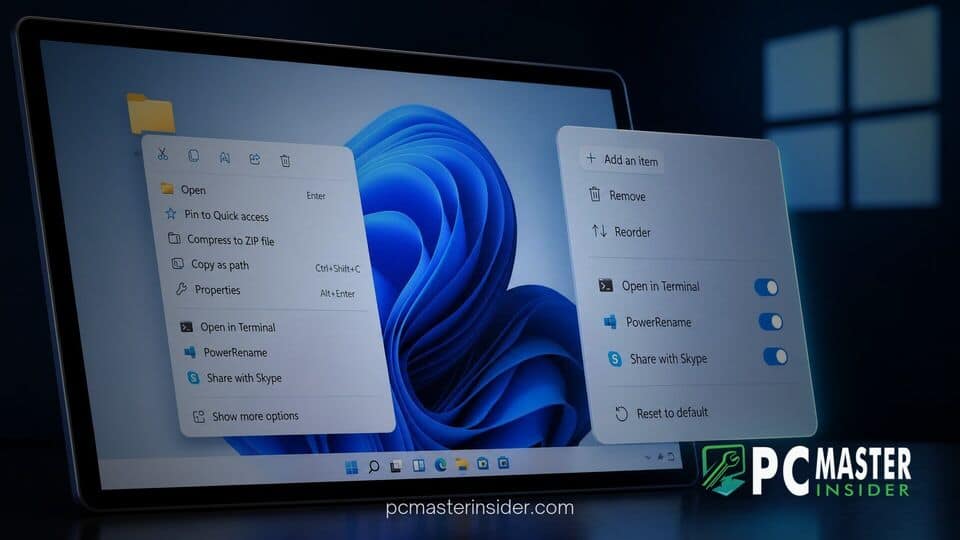
Microsoft has officially released a long-awaited update that grants users direct control over the right-click menu in Windows 11. Arriving as part of update KB5127936 for system builds 25H2 and 26H2, the feature streamlines File Explorer navigation by allowing users to toggle unwanted commands, reorder basic file operations, and disable intrusive third-party app extensions.
The release addresses years of feedback regarding sluggish performance and excessive visual clutter in the modern Windows context menu. By providing a dedicated control interface within the Settings app, Microsoft aims to eliminate unnecessary submenus and make everyday file management faster for desktop users.
Overhauled File Explorer Context Menu Rollout
For years, the modern context menu introduced alongside Windows 11 faced criticism for prioritizing aesthetics over efficiency. Users often complained that common tasks required additional clicks or navigating to the legacy menu. Additionally, automatic app extensions, such as cloud storage shortcuts and media utilities, frequently bloated the right-click menu, leading to performance delays when rendering choices.
With update KB5127936, Microsoft addresses these bottlenecks by giving users native configuration toggles. Users can now clean up the interface without relying on third-party registry hacks or external tweak tools. The updated layout opens faster because the operating system no longer forces background loading for disabled shell extensions.
This update complements broader system updates across the desktop ecosystem. For instance, recent developments such as Windows 11 Search offering a Bing-free experience and new per-app privacy controls for desktop applications highlight Microsoft's ongoing effort to provide users with refined control over their operating environment.
Key Customization Options and Performance Upgrades
The new context menu architecture introduces several key features designed to tailor the right-click interface to individual workflows:
- Toggleable File Commands: Users can independently enable or disable contextual actions such as Send to, Print, Create shortcut, Copy as path, and Rotate image.
- App Extension Management: Dedicated controls allow users to prevent installed third-party programs from inserting unwanted entries into the main menu.
- Icon vs. Text Options: Essential file management options like Cut, Copy, Paste, Rename, Delete, and Share can be displayed as labeled text rather than top-row icon buttons, bringing back a classic layout preference.
- Submenu Reorganization: Users can rearrange where items like Properties appear or move frequently accessed shortcuts higher up in the layout.
Performance benchmarks indicate that disabling unused shell extensions noticeably reduces rendering latency when opening the menu on systems loaded with extensive software suites.
windows 11 customizable context menu Summary and Setup Overview
The windows 11 customizable context menu provides a streamlined solution for removing bloated right-click entries and improving system responsiveness. By migrating configuration controls directly into the core Settings app, Microsoft enables users to toggle system commands on or off, control third-party app extensions, and choose between icon rows and standard text labels. This news marks a significant shift toward user-driven personalization in core File Explorer components.
Below is a summary table detailing the key changes in the updated Windows 11 context menu:
| Feature Area | Previous Behavior | New Behavior with Update |
|---|---|---|
| Extension Control | Apps added items automatically with no toggle settings. | Users can toggle individual third-party app extensions on or off. |
| Primary Operations | Cut, Copy, Paste displayed strictly as icon buttons at top or bottom. | Users can choose between icon buttons or labeled text options. |
| File Actions | Fixed list of system actions based on file type. | System actions like Send to, Print, and Copy as path can be hidden. |
| Performance | Slow menu pop-ups due to background extension checks. | Instant menu rendering with disabled extension overhead. |
How to Access and Configure the New Right-Click Layout
Accessing the new customization suite is straightforward once update KB5127936 is installed on supported Windows 11 builds. Users can initiate setup through two primary methods:
- Direct Context Entry: Right-click any file or empty folder area in File Explorer, then select the new "Customize menu" entry located near the bottom.
- Settings Application: Navigate to
Settings > Personalization > Context menuto manage global toggles for shell extensions and system commands.
For users who prefer the traditional, full-length context menu from older operating system releases, holding down the Shift key while right-clicking continues to instantly bring up the expanded legacy menu.
System stability remains a focus for Microsoft as these interface changes roll out. This focus on system stability is also evident in other recent technical improvements, such as how Windows 11 captures emergency kernel crash dumps on forced shutdown to help diagnose system hangs.
Impact on Windows 11 Usability and Desktop Workflows
The addition of native menu controls represents one of the most substantial quality-of-life upgrades to File Explorer since the launch of Windows 11. Power users, software developers, and enterprise administrators have frequently voiced frustration over the lack of native tools to curb context menu bloat. By allowing granular control over third-party integration, desktop navigation becomes significantly cleaner.
Tech analysts and software developers have responded positively to the update, noting that native customization removes the need to modify complex system registries, which previously carried risks of corruption during major system updates. Industry commentators point out that providing a cleaner default desktop environment directly addresses long-standing complaints from power users upgrading from Windows 10.
Furthermore, this update aligns with Microsoft's broader strategy of refining core operating system components. Similar productivity and layout improvements have been made in other platform features, such as when Microsoft expanded Windows 11 Search with inline sliders and Phone Link actions, as well as ongoing updates to system maintenance tools like Cloud Rebuild for Windows 11 recovery.
Microsoft is distributing the customizable context menu via a phased rollout. While optional update KB5127936 is currently available for download, server-side enablement means some users may see the feature activated in waves over the coming weeks as broader deployment continues.



