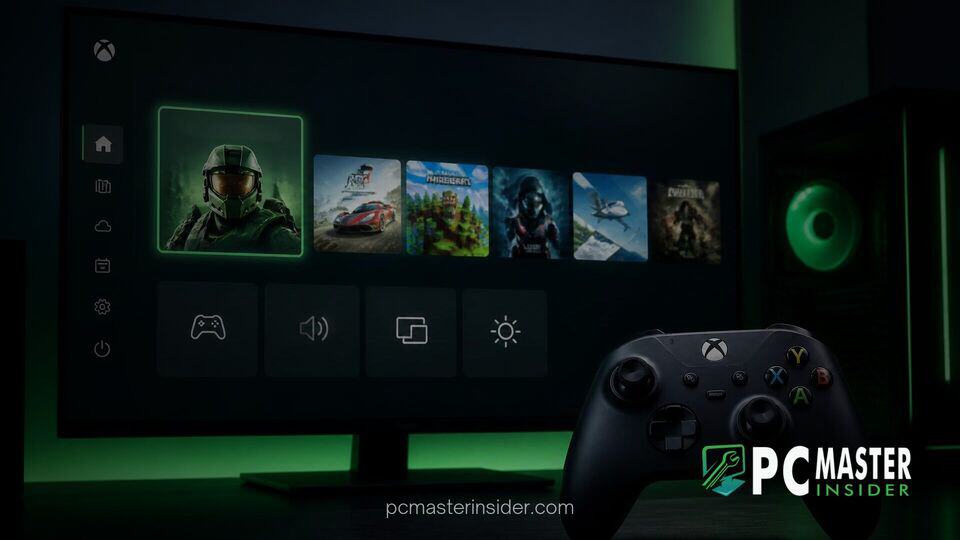
Microsoft is rolling out a redesigned Gaming Task View for Windows 11 Xbox mode across multiple Insider preview channels. The updated interface introduces dedicated controller shortcuts for power management and quick desktop navigation, removing the need for a physical keyboard during full-screen gaming sessions.
The overhaul addresses persistent friction points for players using handheld gaming devices or PCs connected directly to living room televisions. By integrating essential system actions into a controller-friendly navigation bar, the update aligns Windows 11 Xbox mode closer to a traditional console user experience.
Gaming Task View Receives New Controller-Friendly Interface
The primary feature in the latest update centers on a redesigned interface within the windows 11 xbox mode gaming task view update. Previously, opening Task View presented running application windows as preview cards, but returning to the full Windows desktop or managing system power required mouse inputs, touch gestures, or specific keyboard hotkeys like Windows Key + F11.
With the refreshed design, a dedicated navigation bar sits at the bottom of the Gaming Task View screen. Players can browse open games and applications using the shoulder buttons (LB/RB) or thumbsticks on a gamepad, while new on-screen prompts allow instant access to primary system functions.
Quick Shortcuts for Desktop Exit and Power Management
The bottom navigation bar introduces two essential shortcuts: Exit to Desktop and Power Options. Selecting the Exit to Desktop action immediately minimizes the full-screen Xbox environment, taking the user back to the standard Windows 11 desktop environment without requiring a keyboard combination.
Selecting Power Options opens a tailored overlay containing four quick controls:
- Lock: Secures the active user account without terminating running background tasks.
- Sign out: Closes current user sessions and returns to the Windows sign-in screen.
- Shut down: Safely powers down the PC entirely using standard system protocols.
- Restart: Performs a clean system reboot, useful when applying drivers or software updates.
This menu eliminates the cumbersome multi-step process previously required to turn off or reboot living room gaming rigs and handheld devices via gamepads. It complements other ongoing shell refinements, such as the option to test different Start menu size options in preview builds.
Solving Navigational Friction for Handhelds and TV Gaming
Microsoft designed Xbox mode to provide a console-like experience on Windows PCs, starting automatically on supported handheld hardware or launching on demand via the Xbox Game Bar. While the full-screen interface effectively creates a lean launcher environment, exiting the mode or shutting down the machine frequently broke immersion.
In earlier implementations, players who wanted to return to standard desktop applications had to rely on on-screen keyboards, physical peripheral attachments, or obscure shortcut combinations. For handheld users playing away from a desk, searching for alternative input methods created unnecessary friction.
These gaming improvements arrive alongside broader platform enhancements aimed at system usability, including Quick Settings network updates and ongoing context menu optimizations across Windows 11.
Rollout Status and How to Test the Updated Xbox Mode
The updated Gaming Task View is currently rolling out to members of the Windows Insider Program. According to official release notes published by Microsoft, the refreshed interface is included in Beta Channel Build 26220.9739 and Experimental Channel Build 26340.9750. It is also gradually expanding to Release Preview builds 26200.9807 and 26300.9807 for Windows 11 versions 25H2 and 26H2.
To enable Xbox mode on a compatible PC running Windows 11 24H2 or newer:
- Open the Settings app from the Start menu or Taskbar.
- Navigate to the Gaming section in the left sidebar.
- Select Xbox mode and toggle the feature switch to On.
- Ensure the option for Show Xbox mode in Task View is enabled.
Once activated, players can invoke the Gaming Task View inside Xbox mode at any time by pressing and holding the Xbox guide button on a connected controller, swiping up on touch-capable handheld screens, or pressing Windows Key + Tab on a keyboard. Users who do not see the updated navigation bar right away can wait for the phased server-side rollout or use feature configuration tools like ViveTool in supported Insider builds.
As Microsoft continues refining its gaming ecosystem, controller-native features like the updated Gaming Task View demonstrate a focused effort to make Windows 11 a more seamless host platform for living room PCs and portable handheld hardware.