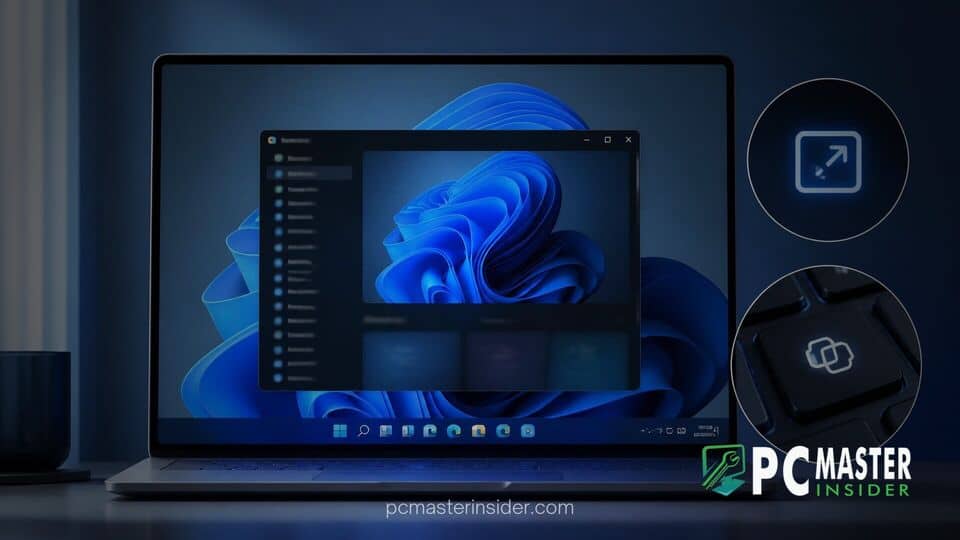
Microsoft has officially rolled out its latest non-security feature preview update for Windows 11, focusing heavily on user-requested customization options and workflow refinements. The release introduces new native capabilities that address longstanding hardware layout complaints while giving users finer control over how applications open across their desktops.
Alongside key accessibility tweaks, the update continues Microsoft's ongoing efforts to streamline operating system interaction. By giving individuals and system administrators the ability to tailor physical key functions and manage window behavior right from the system settings, the release offers practical enhancements for both daily consumers and enterprise users.
Key Features Arriving in the Windows 11 October 2026 Update
The newest release package focuses on reducing friction in daily desktop navigation. Rather than introducing drastic visual Overhauls, Microsoft has prioritized practical system adjustments that refine existing user interface components and expand input device flexibility.
New Accessibility Setting to Launch Apps Maximized
A notable quality-of-life addition in this update is a dedicated toggle within the operating system's accessibility panel that allows users to force applications to open in a maximized state by default. Historically, Windows relied on individual application manifests or remembered previous window dimensions, which often resulted in inconsistent app placement across multi-monitor setups or high-DPI displays.
Under the updated framework, users can enable a global setting that automatically expands supported application windows to fill the screen upon launch. This feature is particularly beneficial for screen reader users and individuals with vision impairments who require immediate, predictable visual layouts without needing to manually trigger window controls or press keyboard shortcuts like Alt + Space after an app opens.
Expanded Copilot Key Remapping Options
When hardware manufacturers introduced dedicated Copilot buttons on modern laptop designs, the physical key frequently replaced traditional keys like Right Control or Context Menu. This design choice caused friction for users relying on established muscle memory for spreadsheet navigation, text selection, and screen reader shortcuts.
To address these concerns, Microsoft has expanded native configuration options under Settings > Bluetooth & devices > Keyboard. Users can now reassign the physical Copilot key to function natively as the Right Control key or the Context Menu key. Alternatively, the button can be set to open Windows Search or launch custom packaged MSIX applications. While Microsoft notes that certain complex combination shortcuts involving Right Control may require using the Left Control key instead, this native remapping eliminates the need for third-party software utilities just to restore standard keyboard layouts.
System and Recovery Enhancements
Beyond input remapping and window scaling options, the update introduces several underlying maintenance improvements across system components to boost overall platform stability.
Wi-Fi Connectivity in Windows Recovery Environment
Managing system repair scenarios becomes significantly easier with updated networking support within the Windows Recovery Environment (WinRE). The system now preserves and reuses saved Wi-Fi profiles when entering recovery mode, allowing users to establish wireless internet connectivity during troubleshooting sessions without needing an Ethernet cable or manually re-entering network security keys.
This connectivity improvement ensures that cloud-based recovery tools, automated driver downloads, and diagnostic reporting can function seamlessly even when a system cannot boot into the primary desktop environment.
File Explorer and Touchpad Controls
File Explorer receives subtle refinements aimed at improving file inspection speed. The preview pane has been updated to render complex document formats faster while reducing system resource utilization during heavy multitasking. These adjustments build upon previous desktop optimizations, such as when Microsoft rebuilt Windows 11 Search with WinUI 3 to speed up taskbar interactions.
Precision touchpad users will also benefit from enhanced multi-touch gesture responsiveness and expanded customization options in Settings. Additional gesture profiles make desktop switching and window management feel smoother on thin-and-light laptop hardware.
Rollout Schedule and Upgrade Requirements
The features are currently rolling out as an optional cumulative preview update, giving early adopters and system administrators an opportunity to test functionality before the changes are integrated into the upcoming mandatory monthly security update. Windows users can check for the update manually by navigating to Settings > Windows Update and opting into preview builds.
As operating system adoption expands worldwide—especially after Windows 11 reached major market share milestones—Microsoft continues to align its development priorities with direct user feedback. Updates that grant control over hardware shortcuts and desktop behavior illustrate a clear focus on maintaining high productivity standards across diverse hardware configurations.
By offering native key remapping and simplified window controls, the latest release delivers practical usability gains. These targeted refinements demonstrate Microsoft's commitment to polishing core desktop interactions alongside its broader ecosystem updates.