
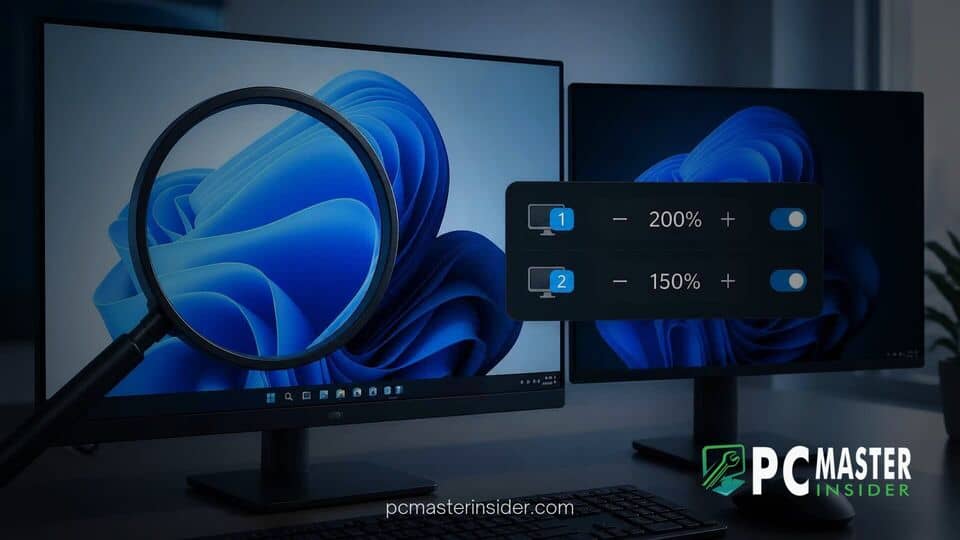
Microsoft has begun testing a substantial update to the built-in Windows 11 Magnifier tool across Windows Insider channels, introducing independent magnification scaling for multi-display setups. The preview builds enable users to customize zoom levels on each connected screen while adding dedicated viewport locking controls and an enhanced high-contrast visual theme.
The updated accessibility features are currently rolling out to participants in the Windows Insider Program across several channels, including Beta Channel preview builds. This push reflects Microsoft's continuous efforts to modernize core OS utilities, following recent desktop enhancements such as rewriting PowerToys utilities in native WinUI 3 to elevate system responsiveness.
Windows 11 Magnifier Per Monitor Zoom Update: Key Features Overview
>The central change in the preview build updates how Magnifier handles setups with multiple monitors configured in Extended display mode. In prior releases of Windows 11, active magnification levels stretched across all screens simultaneously, applying a uniform zoom factor regardless of display resolution or workspace intent. The updated feature lets each connected monitor operate as an isolated magnification zone, retaining its own distinct scale percentage.
Alongside independent display scaling, Microsoft introduced viewport locking to hold magnified reference materials in place on one monitor while navigating actively on another. The update also includes a dedicated glare-reducing high-contrast toggle within the Magnifier interface that preserves original color rendering across embedded media such as images and video playback.
Independent Zoom Scaling Across Multiple Displays
For users running multi-monitor workstations, uniform screen scaling has long created usability bottlenecks. Under the previous Magnifier behavior, zooming in on text on a secondary display would scale the primary display by the exact same proportion, often disrupting workflows when managing high-resolution monitors alongside standard displays.
With the new per-monitor zoom capability active, users can set precise scale factors tailored to each monitor. For instance, a reference document on a secondary screen can be set to 300 percent magnification to ease legibility, while a primary workspace display remains at 150 percent or standard 100 percent scaling. Moving the mouse pointer across display boundaries adjusts the active viewport to match the pre-configured zoom level of the targeted monitor seamlessly.
Users can manage display preferences directly inside the Magnifier floating toolbar or through the Windows 11 Settings app under Accessibility > Magnifier. Microsoft provides the option to toggle independent display zooming off, returning the app to classic span mode for users who prefer unified multi-screen enlargement.
Viewport Locking and Enhanced Display Navigation
To complement independent monitor scaling, Microsoft added viewport locking functionality designed to improve focus during complex multi-screen tasks. Traditionally, Magnifier moves its enlarged view dynamically to follow the active mouse pointer, text cursor, or keyboard focus across screens. While effective for single-screen navigation, this behavior often causes users to lose track of reference documents on secondary screens when moving the mouse back to a primary editing area.
Viewport locking resolves this by fixing the magnified portion of a specific display in place. A user drafting an email or entering code can lock a enlarged section of notes on one monitor while typing freely on another screen without causing the secondary viewport to shift position or lose focus. Dedicated keyboard shortcuts and toolbar options allow users to pin and unpin viewports rapidly.
New Glare-Reducing High Contrast Theme
Beyond screen scaling adjustments, the updated Magnifier utility features a redesigned contrast toggle aimed at reducing eye strain and desktop glare. Unlike classic system-wide color inversion features, the new high-contrast mode modifies target application interfaces and window backgrounds to high-visibility dark tones while preserving normal visual rendering for photos, graphs, and media controls.
This targeted rendering prevents image distortion while reviewing documents or browsing visual content under elevated magnification. The control is positioned directly on the main Magnifier application bar, allowing quick activation without forcing users to modify overall Windows system accessibility settings.
Rollout Details for Windows 11 Insider Channels
The per-monitor zoom updates are rolling out gradually to Insiders testing recent Windows 11 preview builds. As with most controlled feature rollouts, availability is managed on a server-side basis, meaning not all testing devices will receive the feature immediately upon updating to the latest build.
Microsoft routinely tests accessibility enhancements within Insider branches before integrating them into general availability releases for mainstream users. These client updates coincide with ongoing structural maintenance across the platform, similar to how Microsoft regularly addresses critical system components like Secure Boot certificate updates and resolves minor OS anomalies across broader deployment branches.
By giving each monitor independent zoom scaling and viewport locking options, Microsoft addresses key productivity challenges for low-vision users and multi-screen power users alike. As testing continues in the Insider Preview channels, Microsoft is expected to collect telemetry and user feedback before rolling out these refined Magnifier tools to all Windows 11 devices in an upcoming cumulative update.