
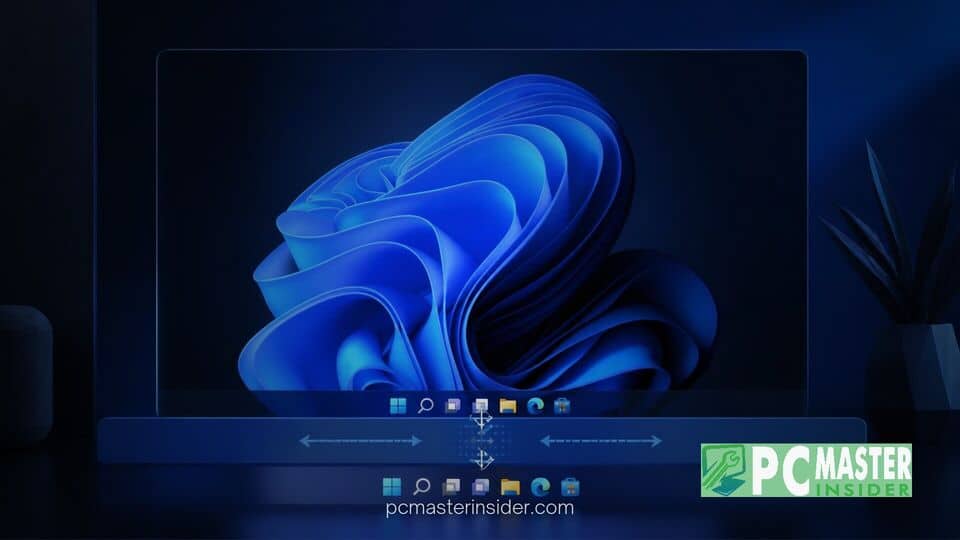
Microsoft has released non-security preview update KB5120998 for Windows 11 versions 24H2 and 25H2, delivering several highly requested user interface customizations. The update elevates system builds to 26100.9278 and 26200.9278 respectively, bringing back native taskbar positioning capabilities alongside new layout options for the Start menu and Windows Search.
This release addresses long-standing user feedback regarding visual flexibility on desktop displays. Alongside display and navigation updates, Microsoft has integrated core security enhancements and system fixes that will be included in the upcoming mandatory monthly security patch.
Overview of Windows 11 KB5120998 Preview Update
The windows 11 kb5120998 update represents a major functional refinement for the operating system desktop environment. Distributed as an optional cumulative preview patch, it allows system administrators and consumers to evaluate incoming feature changes before their mandatory release. Devices configured to receive updates as soon as they become available will download the package automatically through Windows Update, while others can initiate the download manually via system settings.
While previous Windows 11 updates focused heavily on underlying service frameworks and platform security, build 26200.9278 shifts direct focus back to workspace ergonomics. Users who experienced desktop interface issues previously may also want to review steps on how to fix Windows 11 taskbar freezing and unresponsiveness when updating system configurations.
New Movable Taskbar and Small Icon Customizations
The standout feature of update KB5120998 is the restoration of taskbar repositioning. Since the launch of Windows 11, the primary taskbar was strictly locked to the bottom edge of the screen, removing a core desktop customization option present in earlier Windows iterations. With build 26200.9278, users can navigate to Settings > Personalization > Taskbar > Taskbar behaviors to dock the taskbar along the top, left, or right edges of their display.
In addition to edge positioning, Microsoft has restored a dedicated small taskbar mode. Enabling this option shrinks both the bar height and taskbar icons, giving users on compact screens or high-density monitors additional vertical pixel real estate. Most existing taskbar features, including alignment and icon combining behaviors, remain operational regardless of which display edge is selected.
Resizable Start Menu and Bing Search Controls
The Start menu has received complementary adjustments designed to streamline application layout management. Users can now select between small and large Start menu sizing modes, as well as toggle the visibility of individual sections within the menu interface. The Recommended and Pinned areas can be minimized or hidden independently, allowing for a cleaner desktop layout. For users looking to trim down unwanted desktop clutter further, guides on how to disable recent files and app recommendations in Windows 11 Start menu provide additional steps to streamline the experience.
Windows Search has also been updated to offer finer control over online content integration. System settings now include options to disable web-based Bing search results and Microsoft Store integration directly within the local search pane, helping users isolate local file queries without generating extraneous web traffic. This change addresses recurring feedback regarding browser and search defaults across the OS, complementing previous reporting where the Microsoft Windows 11 tool prompts browser users to switch to Bing.
Administrator Protection and Core Security Rollouts
Behind the user interface refinements, update KB5120998 introduces a key security capability known as Administrator Protection. This feature creates profile separation to help prevent unauthorized privilege elevation attacks on corporate and managed networks. Under this model, admin tasks request hidden, isolated system rights just in time rather than running continuously with full administrative access.
Microsoft noted in its security documentation that while Administrator Protection is not designed as a hard security boundary, it hardens system security against modern elevation attacks. The feature is disabled by default and can be configured by network administrators via Group Policy or Microsoft Intune OMA-URI settings. Enterprise IT teams managing diverse environments can track these infrastructure developments alongside related operating system changes, such as when Microsoft releases Windows 11 version 26H2 to Release Preview channel.
The update package also includes quality improvements targeting graphics drivers, storage connectivity, and Win32 application performance. Hardware security infrastructure updates are being deployed simultaneously to handle upcoming Secure Boot certificate renewals scheduled across modern PC hardware.
How to Obtain and Install Build 26200.9278
Windows 11 users interested in testing the new features can open the Settings app, click on Windows Update, and select Check for Updates. Because KB5120998 is an optional preview release, the installation must be manually triggered by selecting Download and Install under the optional updates header. Standalone offline installers (.msu) are also available via the Microsoft Update Catalog for manual deployment across unmanaged environments.
Microsoft noted that feature delivery follows a gradual rollout schedule. Consequently, visual changes such as the movable taskbar may activate in stages across different hardware configurations over the days following installation. Early user reports also indicate that custom mouse cursors and desktop wallpaper settings may occasionally reset to default values immediately after applying the patch, requiring users to re-apply their personal themes. Users who prefer automated, fully validated releases can wait for the patch components to be bundled into the standard mandatory Patch Tuesday update next month.
In summary, optional update KB5120998 addresses several long-standing user interface requests while strengthening baseline platform security. With the return of taskbar placement freedom and granular Start menu controls, Microsoft continues to refine the Windows 11 user experience ahead of its next general rollout.



