
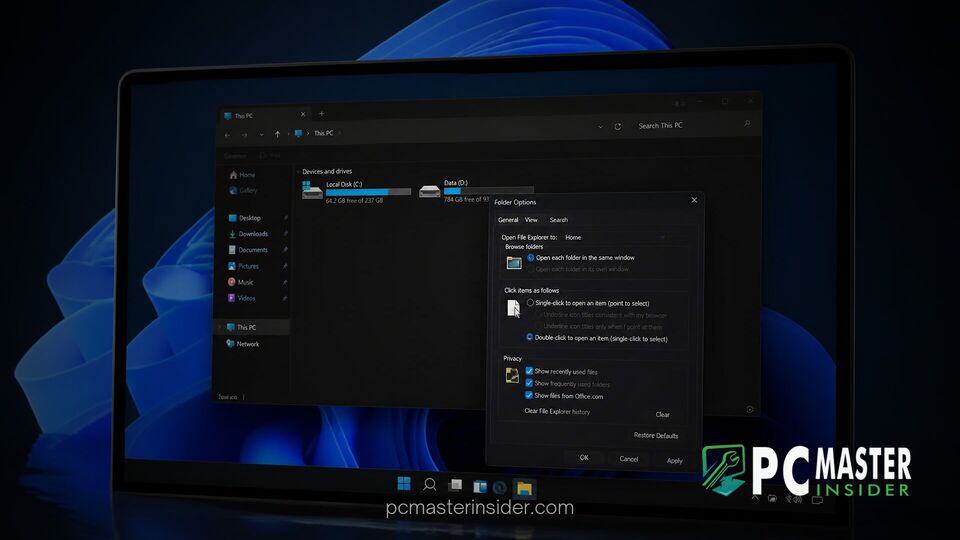
Microsoft has begun rolling out updated visual styling for several legacy elements inside Windows 11, bringing native dark mode support to the classic Folder Options dialog. The change, currently expanding through preview channels in the Windows Insider Program, addresses a long-standing visual inconsistency across the operating system.
For years, users who enabled dark theme across Windows 11 were met with bright white popup windows whenever they accessed advanced file controls or system utilities. The latest preview updates apply dark backgrounds, updated controls, and adjusted contrast levels to these legacy surfaces to match the overall desktop theme.
windows 11 folder options dark mode preview brings visual alignment
The addition of dark mode support to Folder Options in preview builds represents an ongoing effort by Microsoft to overhaul outdated interface components. While core navigation windows inside File Explorer received modern WinUI styling early in the life cycle of Windows 11, secondary dialog windows remained bound to legacy Windows shell designs.
In the refreshed interface, opening Folder Options while system dark theme is active renders the entire window frame, control tabs, check boxes, and drop-down menus in dark grey and black tones. Text labels and tree view navigation panels inside the dialog adapt dynamically to high-contrast dark palette standards to preserve legibility.
Dark Mode Expansion to Legacy File Explorer Dialogs
The overhaul extends beyond the primary Folder Options configuration window. Recent preview updates have introduced dark theme support across multiple classic dialogs tied to daily file management tasks. These include popups for file copy, move, and delete actions, progress bars, file overwrite confirmations, and common error alerts.
Microsoft has also applied dark mode rendering to the classic Run dialog (Win + R), another legacy utility that previously forced a bright white background regardless of user preference. Together, these modifications eliminate jarring transitions when users navigate between modern apps and deep system settings. Recent updates, such as Windows 11 Build 26340.9616 and redesigned taskbar search features, reflect Microsoft's wider push to harmonize system UI components.
Visual Consistency Across Folder Options Tabs
The updated Folder Options window covers all three primary tabs: General, View, and Search. Users navigating through advanced settings to toggle hidden files, modify file extension visibility, or adjust folder search behaviors will see uniform dark background tones throughout each pane.
Previous attempts to skin legacy dialogs often suffered from mismatched scrollbars or unreadable text fields. In the current Insider implementation, selection boxes, list containers, and action buttons follow modern Fluent Design principles with subtle borders and refined hover highlights.
Impact on Modernizing the Windows 11 User Interface
Incomplete dark theme coverage has been a persistent criticism from desktop users since dark mode was introduced in Windows 10. While modern WinUI 3 applications and the main Settings app fully support dark aesthetics, legacy Win32 dialogs created decades ago required underlying platform work to support dynamic theme switching.
By updating the rendering stack for classic shell windows rather than completely rewriting every legacy app, Microsoft can modernize old menus while maintaining full backward compatibility for administrative tools. This incremental approach mirrors other recent File Explorer refinements, such as updates seen in custom context menus in preview builds and PDF preview pane fixes.
Availability and How to Test in Release Preview
The dark theme enhancements for Folder Options and associated dialogs are currently rolling out to participants in the Windows Insider Program across Dev, Beta, and Release Preview channels. Because Microsoft utilizes staged rollouts, some testers may not see the changes immediately upon updating.
Insiders who want to verify the feature can switch their device theme to dark under Settings > Personalization > Colors. Once activated, launching Folder Options from the File Explorer command bar or Control Panel will automatically display the dark interface. Power users on preview builds can also enable the feature flags manually using third-party tools like ViVeTool if the capability has not activated on their system naturally.
Microsoft continues to collect feedback from Insiders before deploying the visual updates to the general public in upcoming cumulative updates or feature releases. Once testing concludes, the dark mode refinements are expected to reach all Windows 11 users, bringing the operating system one step closer to complete visual uniformity.



