
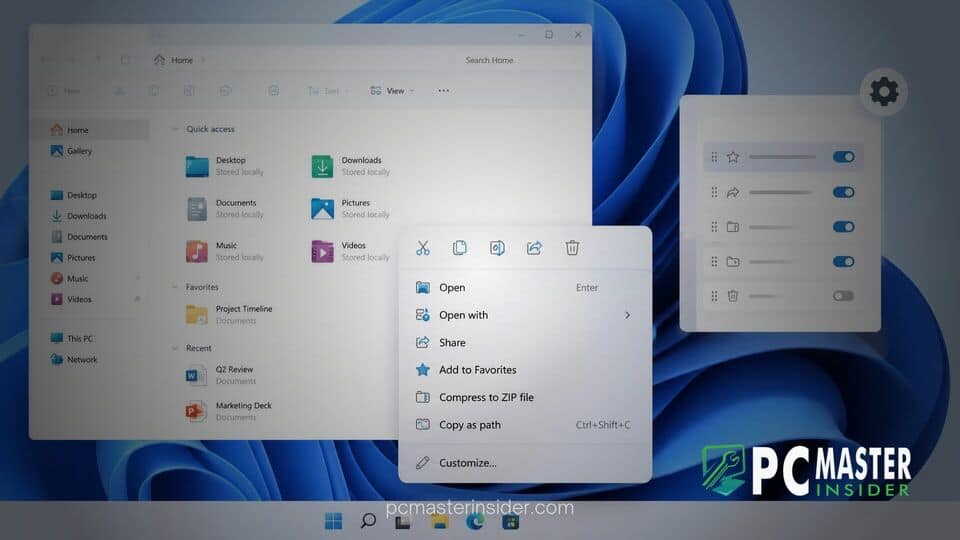
Microsoft has released a major update for Windows 11 preview builds that gives users long-requested control over the File Explorer right-click experience. The new feature allows users to toggle built-in system commands, rearrange icon rows into text items, and manage third-party shell extensions directly through a dedicated Settings page.
windows 11 customizable file explorer context menu preview
The latest windows 11 customizable file explorer context menu preview addresses years of user feedback regarding slow response times and cluttered command menus in File Explorer. By adding a dedicated customization hub inside system settings, Microsoft now allows testers to curate exactly which actions appear when right-clicking on files, folders, or open desktop space. Users can hide rarely used options, restore classic text labels for actions like Cut and Copy, and clean up third-party app extensions that previously degraded performance.
New Customization Settings for Right-Click Context Menu
Since the launch of Windows 11, the modernized right-click context menu aimed to simplify navigation by grouping essential actions into a top toolbar icon row. However, power users frequently voiced frustration over missing classic commands, slow rendering times, and the extra step required to click "Show more options" to view legacy context tools. Microsoft's new design directly tackles those bottlenecks.
At the bottom of the newly designed context menu, users will find a new link labeled Customize menu. Clicking this shortcut routes users straight to a personalized section within the Windows 11 Settings app. From there, desktop users can toggle visibility on or off for built-in utilities such as Send to, Create shortcut, and Print.
This update complements earlier platform refinements aimed at polishing file navigation. For instance, recent updates like Windows 11 KB5127648 Restores File Explorer PDF Preview Pane Support focused on restoring vital navigation components, demonstrating Microsoft's current push to refine desktop usability based on community feedback.
Key Customization Options and Layout Controls
The customization suite introduces several key granular options that significantly change how File Explorer functions on a day-to-day basis:
- Icon Row Transformation: Users can choose to display essential actions like Cut, Copy, Paste, Rename, Delete, and Share as traditional full-text menu entries rather than top-level icons.
- System Command Toggles: Built-in Windows commands like Print or Send to can be activated or hidden depending on personal workflow needs.
- App Extension Filtering: Third-party application commands can be configured to show directly in the main context menu, bundled neatly into a secondary submenu, or hidden entirely.
- Properties Repositioning: The Properties action can be pinned specifically to the very bottom of the menu for faster target acquisition.
- Legacy Menu Access: Holding down the Shift key while right-clicking continues to instantly invoke the full legacy context menu without needing extra navigation steps.
According to release documentation shared on the official Windows Insider Blog, these changes were made to dramatically cut down the delay between clicking a mouse button and having a functional, responsive menu ready on screen.
File Explorer Usability Improvements in Build 26300.9807
The context menu redesign arrives alongside broader quality-of-life upgrades introduced in preview releases like Build 26300.9807. Beyond menu tailoring, Microsoft has made foundational changes to how File Explorer handles background tasks. File rename operations are no longer interrupted when cloud synchronization triggers in the background, and case-only filename adjustments now update instantly in the active folder view.
Additionally, the address bar has been enhanced to parse paths containing quotation marks and double backslashes properly. Users can also middle-click folders in the address bar and Home view to open them directly in new tabs, bringing smoother tabbed browsing to heavy multitaskers.
These interface overhauls align with broader operating system optimizations seen in recent test builds. Recent developments highlighted in Windows 11 Build 26340.9616 Updates Task Manager and Fixes Update Bugs showcase Microsoft's systemic focus on boosting system responsiveness and reducing interface hangs across the board. Furthermore, as discussed in Microsoft Design Chief Explains Strategy Behind Windows 11 UI Changes, balancing modern design aesthetics with legacy muscle memory remains a central priority for the engineering team.
Rollout Timeline and Access for Windows Insiders
The updated right-click features are currently rolling out gradually to members enrolled in the Windows Insider Program across preview channels. Because Microsoft is utilizing a staged rollout model, not every participant will see the option immediately upon installing the latest cumulative preview packages.
To check if the feature is enabled on your device, right-click any file within File Explorer or on your desktop and look for the Customize menu option near the bottom of the list. If available, selecting it will open the corresponding Settings pane where you can begin toggling individual controls. If you prefer the standard Windows 11 layout, no configuration changes are required, as the default setting preserves the existing menu structure.
Assuming testing feedback remains positive across the Insider channels, these context menu customization features are expected to reach the general public in an upcoming feature update for Windows 11 25H2 and 26H2 releases.



