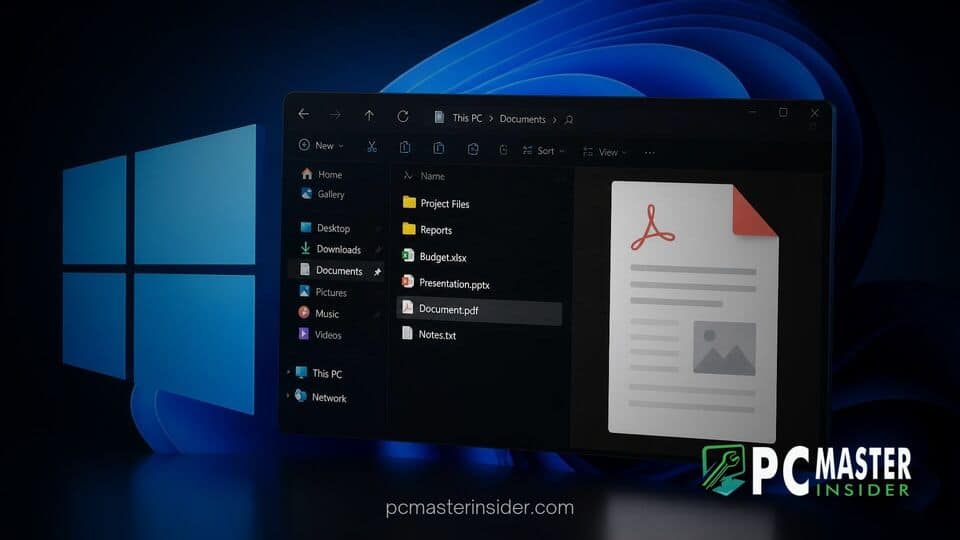
Microsoft has released cumulative update KB5127648 for Windows 11, introducing significant usability fixes for File Explorer. The patch restores automatic PDF document previews within the native file manager while adding new security options for web-downloaded content.
The update arrives as part of Microsoft's monthly maintenance release cycle, addressing longstanding user feedback regarding file preview restrictions. Along with PDF preview restoration, the update includes navigation improvements for File Explorer and general system reliability enhancements across supported builds.
File Explorer Preview Pane Bug Fixes in KB5127648
The release of cumulative update KB5127648 marks an important usability update for Windows 11 users who rely heavily on quick document inspection alongside other gaming and system fixes delivered in KB5127648. For several months, users attempting to inspect downloaded PDF files through the File Explorer preview pane encountered security warning blocks that prevented documents from rendering automatically. Microsoft has now refined these security boundary behaviors to strike a better balance between system protection and workflow efficiency.
Under the revised system, non-HTML document formats such as PDFs that have been downloaded from web browsers, cloud services, or email attachments will render directly inside the preview pane once selected. This eliminates the extra prompts that previously interrupted file organization tasks when scanning through document folders.
Restored Automatic PDF File Previews
Prior to this update, security measures introduced to mitigate potential remote code execution and credential leakage risks caused File Explorer to block previews for internet-sourced files. Users were routinely shown warning dialogs stating that the previewed file could harm their computer, requiring them to manually open documents in external applications to read their contents.
With KB5127648 installed, Windows 11 restores native PDF preview rendering automatically. When clicking a PDF file stored on local drives or synchronized via cloud services like OneDrive, the preview pane populates immediately without throwing security blocks or requiring additional confirmation clicks.
New Preview Option for Downloaded HTML Files
While PDF files now preview automatically, web pages and HTML documents receive a distinct security treatment due to the higher risk profile associated with web script execution. Instead of blocking HTML previews entirely, Microsoft has implemented a new "Preview anyway" toggle button within the preview pane.
When an HTML file downloaded from the web is selected, File Explorer displays a brief security prompt explaining the potential risks. Users can click the "Preview anyway" button to acknowledge the warning, allowing the system to display the web file directly inside the pane without opening a full web browser instance. This gives power users access to fast file inspection while retaining guardrails against untrusted code execution.
Additional File Explorer Home and Details Pane Enhancements
Beyond preview pane behavior, KB5127648 delivers several quality-of-life adjustments to File Explorer's main interface. The update improves session state persistence on the File Explorer Home tab. Sections that users collapse or expand, such as Recommended files or Quick Access groups, now maintain their exact configuration state across system restarts and app relaunches.
The Details pane has also received attention in this build. Microsoft updated the underlying architecture to enhance the reliability of file thumbnail previews for cloud-backed files. Additionally, the pane layout has been reorganized so that essential metadata properties, including file author, creation dates, and file permissions, are easier to locate during quick inspection.
This update comes alongside broader system updates across the platform, including recent interface refinements like the Windows 11 redesigned search with taskbar toggles and updates to WinUI application controls across modern desktop builds. Users interested in system optimization can also review guides on how Windows 11 update builds lower desktop RAM consumption or how to fix high CPU usage from system interrupts in Windows 11.
Systems configured for automatic updates will receive build updates automatically via Windows Update. Users can also check for updates manually by visiting Settings, selecting Windows Update, and clicking the Check for Updates button.