
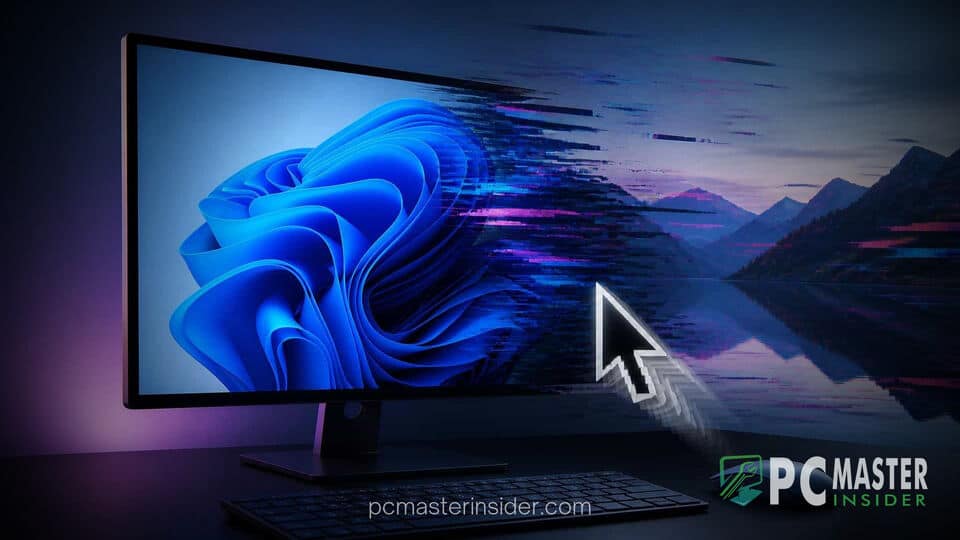
A recent optional cumulative update for Windows 11 has introduced unexpected visual glitches for desktop users. Reports confirm that installing the patch causes persistent mouse cursor scaling anomalies alongside automatic wallpaper resets.
The deployment of major cumulative updates frequently brings fresh enhancements, as seen when Microsoft releases optional update KB5120998 for Windows 11 to introduce interface upgrades. However, late-stage testing and widespread deployment often expose fringe edge cases in display driver scaling and desktop shell rendering.
Mouse Cursor and Wallpaper Issues Reported in KB5120998
The latest wave of feedback surrounding windows 11 kb5120998 bugs focuses on graphical disruptions across modern display configurations. System administrators and home users report that installing the package triggers unexpected behavior in everyday desktop interaction components.
Affected machines primarily display issues after waking from sleep or completing a system restart. The visual regressions do not crash the underlying operating system kernel, but they disrupt the visual environment for multi-monitor setups and high-resolution displays.
HiDPI Custom Pointer Reset Behavior
Users who rely on custom cursor schemes or altered pointer scaling parameters report frequent resetting of their active scheme. The pointer suddenly reverts to the default small white arrow scheme without warning or user input.
In high-density display configurations, high-DPI scaling factors often fail to persist across active application windows. The mouse pointer rapidly oscillates between enlarged and miniature sizes when hovering over legacy Win32 application windows or desktop icons, creating input inaccuracy during precision tasks.
Desktop Background Reversion Bug
The second major symptom identified in current report threads affects personalized wallpaper parameters. Users running custom high-resolution images or slideshow backgrounds report that their background instantly reverts to a solid black or default system wallpaper image.
This behavior manifests when switching between dark and light color modes, or when connecting secondary display hardware. The Windows File Explorer process appears to lose the cached background file paths in temporary app directories, causing the shell to drop stored customization profiles during display re-initialization.
Workarounds and Troubleshooting Steps
Until official hotfixes arrive through public channels, affected users can deploy several targeted adjustments to mitigate interface disruption.
- Restart the Desktop Shell: Open Task Manager using Ctrl+Shift+Esc, locate Windows Explorer under the processes tab, and click Restart to reload display parameters.
- Re-apply Custom Mouse Profiles: Open Settings, navigate to Accessibility, select Mouse Pointer and Touch, and toggle the size scale slider back and forth to re-engage custom parameters.
- Clear Theme Cache: Delete temporary background image files stored in the
%AppData%\Microsoft\Windows\Themesfolder to force Windows to rebuild background index files. - Pause Update Rollouts: Postpone optional non-security update installations through the Windows Update settings page if high-DPI input stability is required for workflow tasks.
Visual shell glitches are relatively common after desktop update cycles. System administrators often encounter similar interface hiccups, such as when troubleshooting how to fix Windows 11 taskbar freezing and unresponsiveness during major feature rollouts.
Users running specialized display utilities or peripheral software packages should also inspect background drivers. Hardware customization utilities have caused unexpected shell collisions before, similar to when RGB peripheral drivers cause Windows 11 game crashes due to low-level hooks.
Microsoft Response and Upcoming Patch Expectations
Microsoft has acknowledged ongoing community feedback on social channels and feedback portals regarding peripheral rendering quirks in optional updates. Software engineers are investigating graphics stack interactions with third-party driver interfaces to locate the root cause of the visual resets.
System issues stemming from optional previews typically receive resolved patches in subsequent Patch Tuesday updates. Similar driver boundary issues were addressed when Microsoft issued a block against the legacy Inpoutx64 driver to resolve system instability.
Users who experience severe input lag or persistent display reset loops are advised to uninstall the preview patch through Update History settings until standard monthly updates supply refined driver integrations. Microsoft expects to deliver fully verified resolution routines in the upcoming servicing update build release.



