
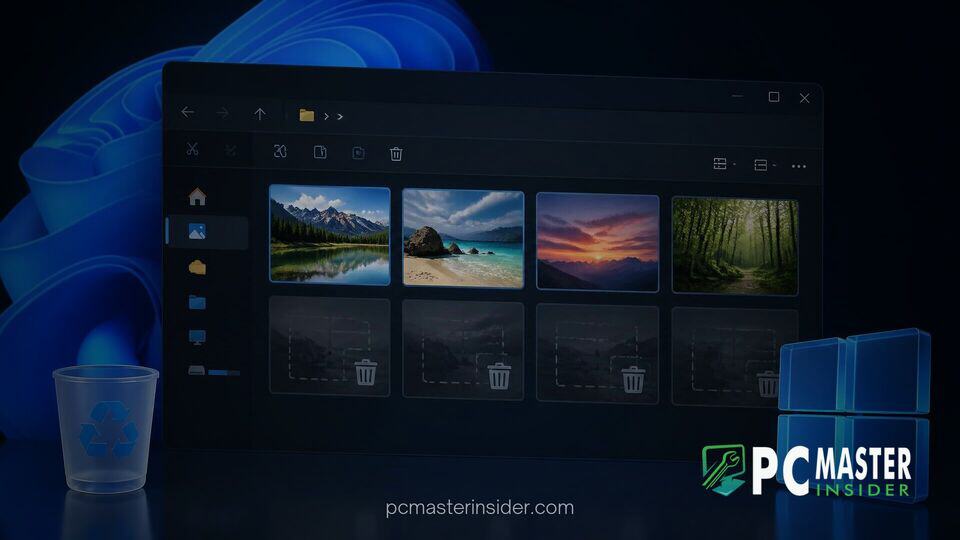
A closer look at how Windows 11 handles file metadata reveals that deleting a photo does not automatically erase its visual record from your system. File Explorer continuously generates and retains cached previews in centralized database files, allowing deleted image details to persist indefinitely on local storage.
While this caching mechanism is designed to speed up file browsing and prevent sluggish directory loading, security analysts and privacy advocates note that it poses potential risks when handling sensitive media. Users who expect that emptying the Recycle Bin completely removes all traces of an image may be surprised to find recognizable previews stored deep within system directories.
Windows 11 Photo Thumbnail Retention in File Explorer
When users view folders containing images, Windows 11 automatically creates compressed image previews. Rather than recalculating these previews every time a directory is opened, File Explorer saves them inside centralized database files to optimize system performance. However, when an original image is deleted, Windows does not automatically purge the corresponding record from its cached database, leaving the preview intact.
Discovery of Persistent Thumbcache Files
The centralized caching system relies on several key database files stored inside the user's local profile folder, specifically at %LOCALAPPDATA%\Microsoft\Windows\Explorer. Within this path, Windows maintains files such as thumbcache_32.db, thumbcache_96.db, thumbcache_256.db, and thumbcache_1024.db. Each database corresponds to different thumbnail resolution tiers used throughout the operating system interface.
Digital forensics experts and cybersecurity researchers have long utilized these database stores to reconstruct user activity. Specialized extraction tools allow investigators to extract individual PNG or JPEG previews directly from the compiled database. Because the operating system prioritizes quick rendering over immediate cleanup, a picture deleted months or years ago can still exist in recognizable form inside these hidden files.
Privacy Implications for Deleted User Media
For everyday users, the main concern revolves around privacy expectations. Many individuals assume that deleting a file and clearing the Recycle Bin removes all local copies. In practice, unless specific system maintenance tasks are performed, residual preview images remain accessible to anyone with physical or administrative access to the machine.
This persistent data retention becomes particularly problematic in environments where multiple users share a single device or where computers are repurposed without undergoing thorough drive sanitization. While Microsoft introduced advanced security tools such as Windows 11 Cloud Rebuild with hardware-level storage sanitization to prevent low-level data recovery during system resets, standard day-to-day file deletions still leave these local cache artifacts behind.
Managing and Clearing Thumbnail Database Cache
Understanding how the system builds and maintains these caches can help users take proactive measures to manage their local storage and protect sensitive media.
How Windows Handles File Explorer Cache Files
The global thumbnail cache concept was introduced in Windows Vista to replace the older legacy method where hidden Thumbs.db files were created inside every individual folder. By centralizing all preview assets into a single user-level directory, Microsoft significantly improved File Explorer navigation speeds and overall disk indexing efficiency.
However, because File Explorer constantly holds active locks on these thumbcache_*.db files while the desktop environment is running, users cannot simply open the folder and manually press delete. Attempting to do so typically triggers a file-in-use error message, requiring specific maintenance utilities or command-line scripts to clear the locked database files.
Steps to Clear and Disable Thumbnail Storage
Users looking to purge leftover image previews can utilize the built-in Disk Cleanup utility. By launching Disk Cleanup, selecting the system drive (usually C:), checking the "Thumbnails" box, and confirming the operation, Windows will safely stop the necessary background services and clear out the accumulated database files. Alternatively, turning on Storage Sense in Windows Settings can help automate temporary file cleanup over time.
For organizations and privacy-focused users running Windows 11 Pro, Enterprise, or Education editions, thumbnail caching can be disabled entirely via the Local Group Policy Editor. By navigating to User Configuration > Administrative Templates > Windows Components > File Explorer and enabling the policy titled "Turn off the caching of thumbnails in hidden thumbs.db files", administrators can prevent Windows from storing persistent preview files on disk.
Microsoft Response and Future Privacy Considerations
Microsoft treats thumbnail caching as a core performance feature rather than a security bug. Operating systems across the industry, including macOS and various Linux desktop distributions, rely on similar local caching frameworks to ensure fluid multimedia navigation across large media libraries.
Despite recent user discussions highlighting the issue on social media platforms, Microsoft has not signaled any plans to change how File Explorer manages thumbnail retention by default. System updates continue to focus on stability and accessibility improvements, such as recent preview releases that introduced Energy Recommendations in Quick Settings and new Pointer Indicator accessibility tools.
Users handling highly confidential files, financial documents, or personal photos should remain mindful of local caching behavior. Regularly running built-in disk maintenance tools or using encrypted volume containers remains the most effective way to ensure sensitive media is completely removed from Windows 11 storage.



