
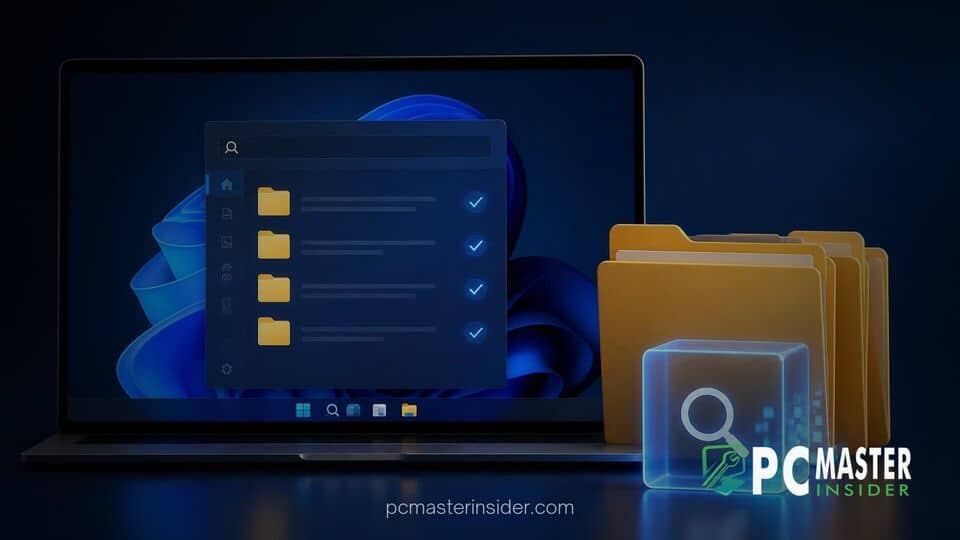
Microsoft has begun deploying an intelligent update to Windows 11 Search designed to make desktop file discovery faster and less frustrating. The operating system can now automatically identify and index your most frequently used folders without requiring manual configuration.
By default, traditional Windows Search indexing focuses primarily on standard user directories such as Documents, Pictures, Music, and the desktop. Files stored in secondary drives, custom workspace folders, or downloads often remained missing from quick search queries unless users manually adjusted their settings. The new update bridges this gap by observing user interaction patterns and expanding the index dynamically.
Automatic Folder Indexing Begins Rolling Out to Windows 11 Search
The feature was introduced in recent system preview releases and cumulative updates for Windows 11 versions 24H2 and 25H2. Under the new system, Windows 11 quietly monitors which directories you open and work in most frequently. When the OS detects sustained activity in a specific location, it automatically adds that folder to the search catalog.
As part of Microsoft's broader effort to modernize core desktop tools, the enhancement targets long-standing user complaints regarding incomplete search results. Earlier efforts focused on general operating system responsiveness, such as when Microsoft confirms major Windows 11 performance upgrades across File Explorer and system memory management.
How the New Automatic Indexing Feature Works
Windows Search relies on a local database that catalogs file names, metadata, and text content. In the traditional Classic indexing mode, any folder outside standard user directories required manual inclusion. Alternatively, users had to switch to Enhanced mode, which indexes the entire storage drive at the expense of higher background resource usage.
The new automatic indexing functionality serves as a hybrid solution. Rather than scanning every obscure directory on your storage drives, the operating system tracks recent file activity and directory access habits. When a folder becomes a regular hub for work or downloads, Windows assigns high priority to that directory and includes it in background search cataloging.
Managing the Automatic Location Search Toggle in Settings
For users who prefer granular control over system behavior, Microsoft has included a dedicated management toggle in the Settings app. You can review or adjust this option by navigating to Settings > Privacy & security > Search.
Inside the settings menu, the new feature appears as a toggle labeled "Automatically find additional relevant locations". Disabling this switch stops Windows 11 from automatically adding new folders to the search scope. Crucially, turning off the setting will not erase existing indexed locations or disable the core Windows Search service. Users can still manually add or exclude specific paths through the traditional search customization window.
Impact on System Search Performance and Storage Usage
Search performance on desktop operating systems has always involved a delicate balance between instant retrieval speeds and background resource consumption. Heavy background disk scans can lead to elevated CPU utilization and reduced battery life on laptops.
By focusing strictly on active user locations rather than full-drive indexing, Microsoft aims to minimize disk wear and background processing loads. However, system background tasks remain a sensitive topic for power users. Similar background automation changes have occurred elsewhere in the OS, such as when Microsoft expands automatic Memory Integrity protection on Windows 11 to strengthen default device security.
Background on Microsoft's Windows 11 Search Improvements
Microsoft has consistently adjusted Windows 11 based on user feedback regarding core user interface components. Over recent release cycles, the development team has revised several system defaults. For instance, Microsoft removes MSN feed from Windows 11 lock screen by default to provide a cleaner layout, while engineers have openly discussed rewriting the Windows 11 taskbar to restore classic features.
Local file discovery has also seen increased competition from third-party utilities and desktop organizers like iTop Easy Desktop, which offer custom file sorting and quick workspace access. The addition of adaptive folder indexing helps ensure the native Windows tool remains competitive for daily multitasking.
What to Expect as the Rollout Expands to More Devices
As with most modern feature updates in Windows 11, automatic folder indexing is being deployed using a controlled feature rollout. This means that even if your system has installed the latest cumulative security patches, the feature toggle may take several weeks to appear in your Settings app.
Overall, automatic folder indexing represents a practical improvement for everyday Windows 11 users. By learning individual workflow habits and expanding file cataloging dynamically, the operating system reduces the need for manual troubleshooting and makes local search significantly more reliable.



