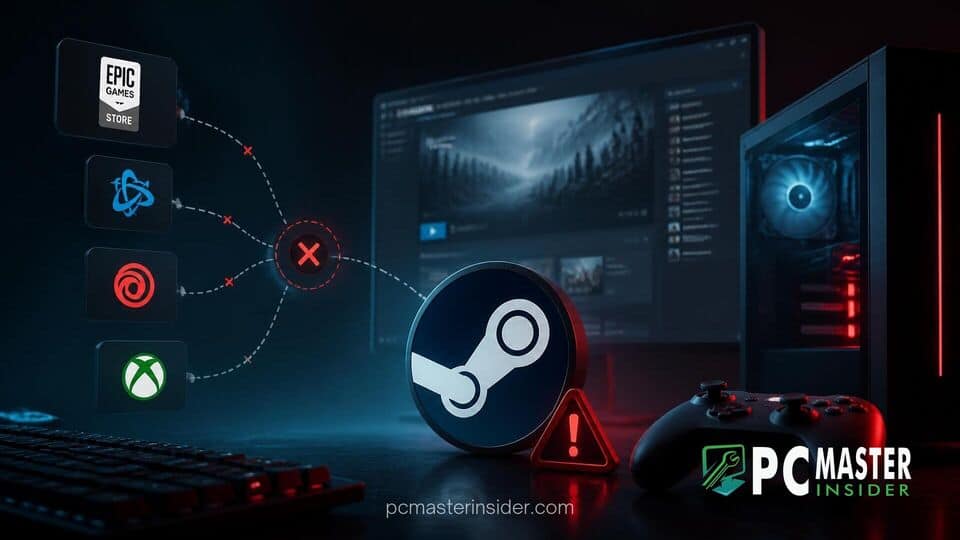
Few things are more frustrating for PC gamers than clicking Play on Steam only to have the game crash before it even boots up. If you are trying to fix Steam games failing to launch secondary launcher apps like EA App, Ubisoft Connect, 2K Launcher, or Rockstar Games Launcher, you are definitely not alone.
This problem usually occurs when Steam struggles to communicate with third-party digital rights management (DRM) clients or secondary publisher software. Corrupted authorization tokens, outdated launcher executables, overlay software interference, missing administrator privileges, or residual cache files frequently break the background bridge between Steam and the external application, leaving your game stuck on a silent crash or infinite loading loop.
Common Causes of Secondary Launcher Failures on Steam
Understanding why your games refuse to initialize is the key to preventing future launch errors. Secondary launchers sit as an extra layer between Valve's platform and the game executable itself, making them vulnerable to multiple software bottlenecks.
Third-Party Overlay and Software Conflicts
One of the most frequent triggers for secondary launcher crashes is conflicting background software. Modern gaming rigs often run several applications simultaneously—ranging from graphics capture tools like GeForce Experience and Discord to peripheral suites like Razer Synapse or Corsair iCUE. When both Steam and a third-party application attempt to inject their own in-game overlays into a game launching via an external wrapper, permission conflicts occur. Additionally, aggressive anti-virus software or Windows Defender real-time scanning may falsely flag helper utilities, breaking the initialization sequence. Interestingly, while publishers often insist on these external wrappers, community pushback occasionally forces changes; for instance, Ubisoft tested a new Steam tool to eliminate the mandatory Connect launcher for certain titles, proving how complex secondary clients can be for seamless play.
Beyond active software overlays, residual cache files within the launcher client itself can become corrupted after major game updates or client patches. When Steam signals the secondary client to authenticate your account, stale tokens or damaged login cookies prevent authentication, causing the executable to silently close in the background. Missing runtime packages—such as Visual C++ Redistributables or DirectX components—can also prevent the helper app from executing properly.
Step-by-Step Fixes for Launcher Startup Errors
Before diving into detailed technical troubleshooting, perform these quick pre-check steps to ensure basic system components are working properly:
- Restart both Steam and your PC to clear temporary background processes and pending update hooks.
- Ensure your graphics drivers are fully updated to the latest stable release.
- Verify that your internet connection is active and stable, as secondary launchers require server authentication.
- Temporarily disable third-party antivirus software or add your Steam and secondary launcher installation folders to the exclusion list.
- Check if the publisher's online servers (such as EA Services, Ubisoft Connect, or Rockstar Social Club) are experiencing downtime.
Verifying Game Files and Admin Permissions
Corrupted installation files or inadequate system permissions often prevent secondary launchers from initiating administrative hooks. Granting elevated privileges ensures that both Steam and the nested launcher can read and write required configuration files without operating system restrictions.
- Open your Steam Library, right-click the problematic game, select Properties, and navigate to the Installed Files tab.
- Click Verify integrity of game files and wait for Steam to scan and replace missing or corrupted files.
- Navigate to the game's installation directory (click Browse... under Installed Files).
- Locate the main game executable file (
.exe) as well as the secondary launcher executable (e.g.,EADesktop.exeorUpc.exe). - Right-click each executable, select Properties, and click the Compatibility tab.
- Check the box for Run this program as an administrator, click Apply, and select OK.
- Repeat these steps for the main
Steam.exeapplication file to ensure uniform permissions across all launch tiers.
Clearing Publisher Launcher Cache Files
Accumulated cache data inside external launcher applications frequently leads to broken authentication loops. Clearing these cache folders forces the client to download fresh configuration files and rebuild valid login tokens.
- Completely exit Steam and close all background instances of the secondary client via Windows Task Manager (Ctrl + Shift + Esc).
- Press
Windows Key + Rto open the Run dialog box. - Type
%localappdata%and press Enter to open your local application data folder. - Locate the folder corresponding to your specific launcher (e.g.,
Electronic Arts,Ubisoft Game Launcher,2KLauncher, orRockstar Games). - Delete the contents inside the
CacheandWebcachesubfolders inside these application directories. - Next, press
Windows Key + Ragain, type%appdata%, press Enter, and remove any temporary setup cache folders found there. - Relaunch Steam and attempt to start your game to generate fresh, uncorrupted cache directories.
Disabling In-Game Overlays and Background Utilities
Simultaneous graphics overlays competing for direct access to your GPU frequently cause instant launch crashes when external clients attempt to boot. Disabling these features restores standard launch behavior.
- Open Steam, click Steam in the top-left menu bar, and select Settings.
- Navigate to the In-Game tab and toggle off Enable the Steam Overlay while in-game.
- Open the standalone application for your secondary launcher (e.g., EA App or Ubisoft Connect) directly from your desktop.
- Access the settings menu within the launcher and disable its native In-Game Overlay feature.
- Close third-party monitoring utilities such as RivaTuner Statistics Server (RTSS), MSI Afterburner, Discord Overlay, and NVIDIA ShadowPlay.
- Relaunch the game through Steam to test if hardware abstraction conflicts have been resolved.
Bypassing or Resetting the Secondary Launcher Executable
In cases where publisher launchers fail due to bad registry entries or broken installation paths, reinstalling or re-linking the launcher utility directly within the Steam game folder fixes broken file paths.
- Open Windows Settings (Windows Key + I) and select Apps > Installed apps.
- Find the secondary launcher client (e.g., EA App, Rockstar Games Launcher, or Ubisoft Connect) and choose Uninstall.
- Navigate to your Steam installation folder for the affected title, typically located in
C:\Program Files (x86)\Steam\steamapps\common\[Game Name]. - Look for a folder named
redist,Installer,Support, orInstallerscontaining the secondary launcher setup file (e.g.,EAappInstaller.exeorUbisoftConnectInstaller.exe). - Run the installer directly from this folder as an Administrator to install the clean, publisher-approved version designated for that Steam title.
- Alternatively, launch the standalone secondary software manually, log in with your publisher account, and confirm that your Steam account is linked under Connected Accounts before starting the game via Steam.
Configuring Windows Direct Play and System Dependencies
Legacy secondary launchers and older publisher clients often depend on legacy Windows components like Direct Play or specific .NET Framework runtimes that may be disabled by default on modern Windows installations.
- Press
Windows Key + R, typeappwiz.cpl, and press Enter to open Programs and Features. - In the left sidebar, click Turn Windows features on or off.
- Scroll down to find Legacy Components, expand the directory, and check the box next to DirectPlay.
- Ensure that .NET Framework 3.5 and .NET Framework 4.8 Advanced Services are enabled.
- Click OK and allow Windows to download and install missing system dependencies, then restart your PC.
How to Prevent This Issue in the Future
To avoid recurring launcher errors, maintain clean system hygiene by routinely updating your secondary clients independently of Steam. Ensure that automatic updates are enabled within standalone apps like EA App or Ubisoft Connect so that security certificates and digital signatures remain current. Keep your system drivers up to date; for example, modern GPUs receive ongoing optimizations, and keeping hardware fresh—like noting how the AMD Radeon RX 9070 XT became the top Radeon graphics card on the Steam Hardware Survey—highlights how critical driver compatibility is across evolving PC setups. Finally, avoid forcing hard shutdowns while games or background clients are actively synchronizing cloud save data, as this is the leading cause of corrupted cache configuration files.
By following these structured troubleshooting procedures, you can effectively fix Steam games failing to launch secondary launcher apps and eliminate annoying startup freezes. Maintaining clean launcher caches, resolving overlay conflicts, and ensuring proper administrative permissions will keep your library running smoothly every time you hit Play.