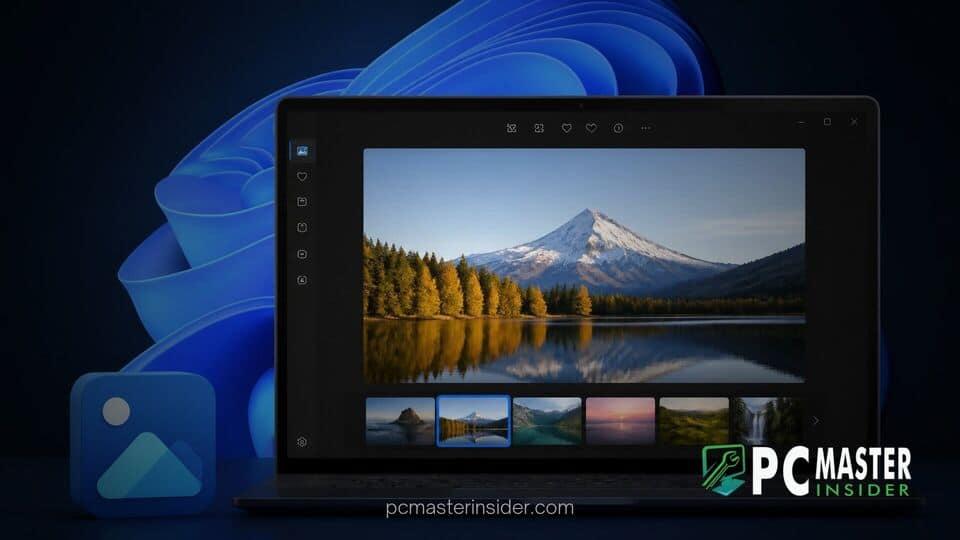
Microsoft has started rolling out a significant redesign for its native Microsoft Photos app on Windows 11, focusing on reducing interface clutter and improving overall application response times. As part of this update, the software giant has completely removed the persistent Ask Copilot button from the primary toolbar alongside several promotional app shortcuts.
The updated app version, designated as build 2026.11080.24002.0, is now reaching general users through the Microsoft Store following preliminary testing with Windows Insiders earlier this summer. Rather than pushing AI integrations into every visual element, the refreshed interface returns the application to its essential primary function: displaying personal media quickly and efficiently.
windows 11 photos app update removes copilot
The windows 11 photos app update removes copilot prompts from the top control panel to deliver a distraction-free photo viewing workspace. In addition to stripping away the dedicated Copilot entry point, Microsoft has trimmed down the crowded top toolbar by migrating auxiliary links for services like Microsoft Designer, Clipchamp, and OneDrive away from the main display into organized submenus or secondary sidebars.
Streamlined Interface Arrives for Windows 11 Photos App
Over past feature cycles, the top navigation toolbar in Microsoft Photos had grown increasingly congested. Previous iterations housed up to ten distinct icons and shortcuts, requiring users to navigate past cloud service triggers, editing prompts, and external web links just to review a photo collection.
With the release of version 2026.11080.24002.0, Microsoft has streamlined the view by emphasizing image management tools over platform cross-promotion. The main header now isolates crucial viewing functions such as zoom, rotation, deletion, and favorite tagging, creating a much cleaner aesthetic that aligns with feedback from desktop users.
Removal of the Ask Copilot Prompt and App Shortcuts
Prior to this update, opening an image in Photos presented a prominent Ask Copilot button intended to launch generative queries or send image data into Microsoft's assistant services. Following user criticism regarding visual bloat, that direct launcher has been eliminated from the primary window viewer.
Furthermore, promotional buttons that launched web-based instances of Clipchamp and Microsoft Designer have been reorganized under a unified Open With dropdown menu. Direct cloud triggers for OneDrive have also been relocated off the toolbar, directing users to interact with their cloud media through the established left navigation tree instead.
Performance Boosts and Faster Loading Times
The visual decluttering effort coincides with noticeable performance enhancements across the application. Users opening high-resolution JPEGs, PNGs, and HEIC files will experience reduced load latency when launching photos from File Explorer.
By removing background hooks and toolbar initializations for external web services, the app opens quickly and transitions smoothly between gallery items. Panning and zooming across large photo libraries now feel far more responsive on standard hardware configurations and low-power laptops alike.
Retained AI Editing Features in Version 2026.11080.24002.0
While Microsoft is stripping away explicit Copilot branding and toolbar entry points, practical artificial intelligence utilities have not been purged entirely from the software. Embedded editing features remain available within the edit mode interface, where users can still opt into tools like Generative Erase, Background Blur, and automated image enhancement.
This subtle shift highlights a broader adjustment in how Microsoft handles AI across core operating system components. Similar to recent updates where generative assistance was rebranded or unbundled in utilities like Notepad and Snipping Tool, the company is moving toward hidden, task-oriented features rather than intrusive banner controls. The objective appears to be providing functional tools when requested without interrupting basic system navigation.
How to Get the Updated Photos App on Windows 11
The streamlined Photos app update is rolling out automatically through the Microsoft Store to all standard Windows 11 installations, meaning users do not need to enroll in preview channels to receive the patch. If your system has not installed the update automatically, you can manually trigger the download through the following steps:
- Launch the Microsoft Store app from your Start Menu or Taskbar.
- Click on the Library icon located in the lower-left corner of the window.
- Select the Get updates button at the top right to check for pending downloads.
- Locate Microsoft Photos in the update list and allow version 2026.11080.24002.0 or higher to install.
This update reflects a welcome pivot toward utility and efficiency for core Windows 11 applications. By placing the user's photos front and center while paring back persistent assistant prompts, Microsoft delivers a faster, cleaner viewing experience that respects system performance and user workflow.