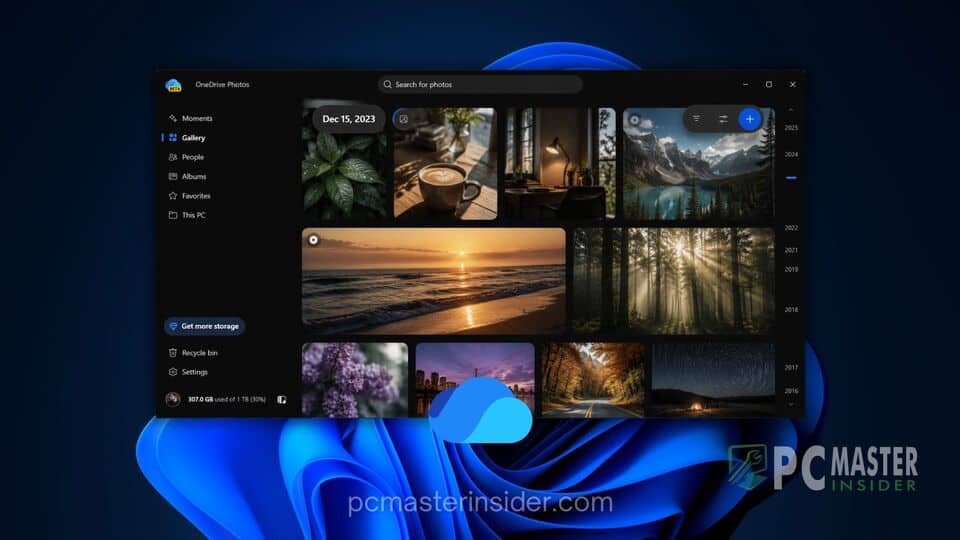
A new media management surface has begun appearing silently across Windows 11 installations without an explicit major update announcement. The component, labeled OneDrive Photos in the Start menu and Windows Search results, offers users a dedicated media gallery interface integrated directly with Microsoft cloud services.
While appearing as an independent application alongside the standard Microsoft Photos app, technical analysis reveals that the tool is delivered via background updates to the OneDrive sync client. The rollout expands the desktop client beyond basic file synchronization into an organized viewer complete with optional artificial intelligence tools.
Silent Rollout of OneDrive Photos in Windows 11
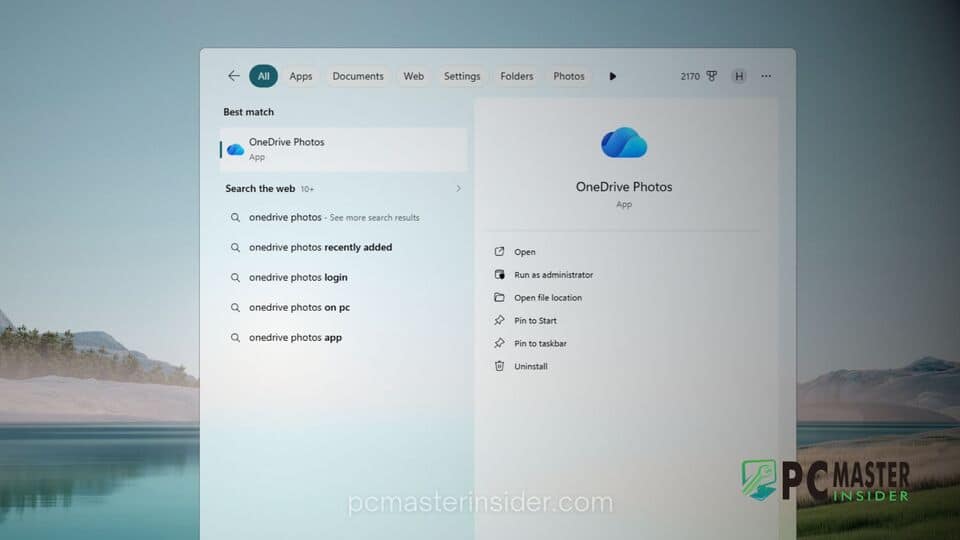
The arrival of OneDrive Photos comes as Microsoft continues to refine how cloud storage services present media to desktop users. Rather than requiring manual downloads from the Microsoft Store, the entry is being surfaced through routine updates to the pre-installed OneDrive client.
The strategic move creates a dedicated entry point for cloud-stored images without altering the core functionality of the traditional file manager. Users searching for media applications or browsing their Start menu will now see OneDrive Photos listed as a distinct choice, offering immediate access to synchronized albums and online photo collections.
How the App Appears and Integrates with the Start Menu
Despite its standalone branding in the Start menu, system investigations demonstrate that OneDrive Photos is not a traditional native win32 app or a separate package. Instead, the shortcut points directly to an executable within the existing OneDrive directory located at C:\Program Files\Microsoft OneDrive\OneDrive.App.exe.
The application relies on WebView2 technology to render a modern user interface designed around Windows 11 design guidelines, including rounded corners, fluent iconography, and dark mode support. Reports indicate that the shortcut can appear in search results even on PCs where the user has not actively signed into a Microsoft account, though cloud synchronization features naturally require authentication.
Key Features and Biometric Face Grouping Capabilities
The centerpiece of the updated software experience is its enhanced organization tools. In addition to timeline views and cloud album syncing, the interface includes a dedicated People tab powered by automated image analysis.
This Windows 11 OneDrive Photos app face grouping functionality scans image libraries to identify recurring faces and automatically group photos of the same individual together. Once faces are clustered, users can assign names to specific people, making it significantly easier to search for family members, friends, or specific events across thousands of stored files.
Data Privacy and Facial Scan Considerations
Because face recognition relies on computer vision algorithms, the inclusion of biometric scanning has drawn scrutiny from privacy-conscious users and tech analysts. Microsoft's official documentation notes that the facial grouping system processes biometric data to create facial templates for organizational purposes.
To address potential concerns, Microsoft emphasizes several operational safeguards in its service documentation:
- User Privacy: Facial groupings are strictly private to the account holder and are not shared across public links, collaborative folders, or shared albums.
- Model Training Exclusions: Biometric information and facial scans gathered from personal libraries are not used to train global underlying artificial intelligence models.
- Regional Consent Rules: In jurisdictions with strict data protection regulations, such as the European Union, facial recognition remains turned off by default until explicit user consent is provided.
Nevertheless, the automated deployment of biometric-capable software surfaces via background sync updates highlights ongoing debates regarding transparent consent and default software bundling in modern operating systems.
How Users Can Manage or Disable OneDrive Photos
Because the app operates as a sub-component of the primary OneDrive sync service, managing or removing it requires specific steps depending on user preference. Users who prefer not to utilize biometric features can simply leave the People tab disabled or toggle off photo tagging within the settings menu of their account.
For those wishing to remove the shortcut entirely, uninstalling the primary OneDrive client will remove the secondary entry from the Start menu. However, doing so also halts automatic cloud backup for Documents, Desktop, and Pictures folders. Alternatively, users who wish to keep file synchronization active while ignoring the media interface can simply unpin the shortcut from the Start menu or set default image file handlers to the built-in Microsoft Photos app.
As Microsoft continues to blend local desktop tools with cloud-powered web components, the quiet introduction of specialized views like OneDrive Photos reflects a broader industry trend toward service-driven operating systems. Users are encouraged to review their account privacy settings periodically to ensure media indexing options align with their personal privacy preferences.