
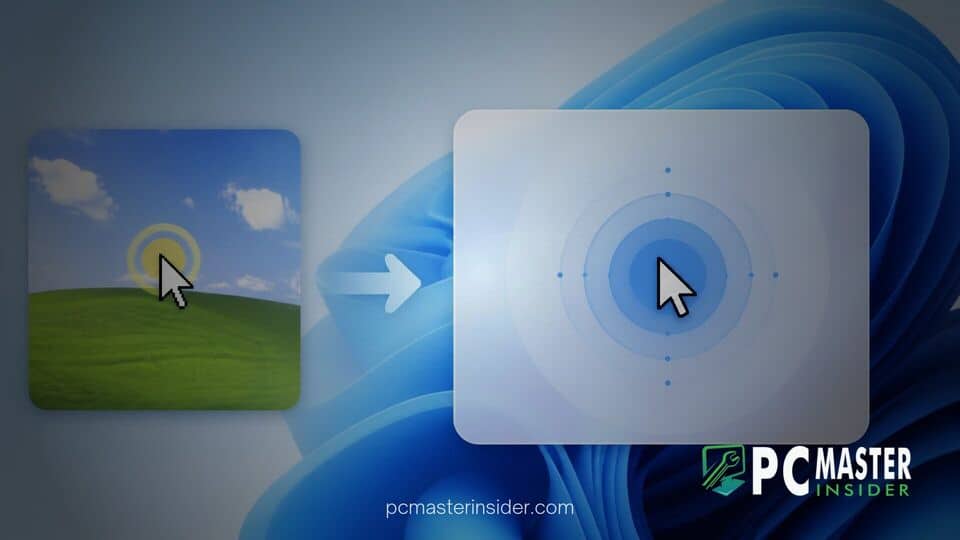
Microsoft is giving one of its oldest system utilities a long-overdue overhaul in preview builds of Windows 11. The classic mouse pointer locator, which has remained largely unchanged since the Windows XP era, is receiving updated visual effects and extended usability settings.
Discovered in recent Insider builds, the refreshed tool replaces the shrinking dashed circle animation with a sleek Fluent Design visual. In addition to aesthetic changes, Microsoft is introducing a new persistent toggle that keeps the highlight active on display until a user manually dismisses it.
Modernized Mouse Pointer Indicator Discovered in Windows 11 Builds
The latest Windows 11 mouse indicator setting update upgrades a legacy feature that millions of users rely on daily. Historically toggled via the Control Panel, pressing the Ctrl key triggered a rapid series of concentric rings that faded quickly, helping users spot their cursor across high-resolution or multi-monitor setups. Microsoft is now integrating this feature deeply into the native Settings app under the Accessibility menu with modern animations and enhanced customization options.
For decades, desktop operating systems handled display scaling for simple 720p or 1080p single-monitor configurations. As standard setups expanded to dual 4K monitors or ultra-wide displays, finding a small white arrow became a common frustration. Power users and accessibility advocates have long asked for built-in tools that bring cursor highlights up to modern visual standards without requiring third-party software installation.
The legacy Control Panel menu housed the original setting under the Pointer Options tab as a simple checkbox labeled show location of pointer when I press the CTRL key. While functional, the original animated ring frequently clashed with the updated transparent controls and smooth UI elements introduced in Windows 11. The upcoming implementation updates the overall look while ensuring system performance remains completely unaffected.
How the Refreshed Ctrl Key Cursor Search Works
Under the new implementation, pressing the Ctrl key creates a soft halo effect around the cursor rather than an outdated dashed graphic. The subtle glow matches the modern design language seen across Windows 11 operating system menus, notifications, and core system applications.
Alongside the updated visual style, Microsoft has introduced an optional toggle titled keep indicator visible until dismissed. When this option is enabled in Settings, users are no longer limited to a quick one-second pulse. Instead, triggering the locator locks the highlight ring directly onto the cursor pointer as it moves across the screen, making continuous tracking effortless during presentations or video calls.
Comparing the New Feature to PowerToys Mouse Utilities
For power users, this upgrade closely mirrors capabilities previously available only through Microsoft PowerToys. The PowerToys Find My Mouse utility allowed users to double-shake their physical mouse or press specific key combinations to dim the entire background desktop while spotlighting the cursor.
While the native Windows 11 mouse indicator setting update does not dim the entire display background like PowerToys, bringing persistence and dedicated key shortcuts into core accessibility settings ensures that everyday users obtain better functionality out of the box without needing extra downloads.
Phasing Out Legacy Accessibility Controls Across Windows 11
This update aligns directly with Microsoft's ongoing project to migrate classic Control Panel applets into the unified Windows 11 Settings interface. For years, basic mouse speed controls resided in modern menus while advanced properties such as pointer trails, shadow toggles, and location highlights remained locked inside classic dialog boxes like main.cpl.
By bringing mouse indicator options into Accessibility under Mouse Pointer and Touch, Microsoft is simplifying system navigation for users with low vision or cognitive impairments. Centralizing these toggles ensures enterprise administrators can manage accessibility policies modernly while reducing reliance on legacy applets scheduled for eventual retirement.
How to Enable and Test the New Mouse Indicator
The modernized mouse indicator setting is rolling out gradually to preview channels. Once available to all users in upcoming feature updates, enabling and customizing the locator requires only a few simple steps:
- Open Settings: Press the Windows Key + I to launch the main Settings app.
- Navigate to Accessibility: Select Accessibility from the left-hand navigation sidebar and click on Mouse pointer and touch.
- Toggle Mouse Indicator: Turn on the Mouse Indicator switch to activate the basic Ctrl key pulse animation.
- Enable Persistent Mode: Check the option labeled Keep indicator visible until dismissed if you require constant visual tracking.
- Use Keyboard Shortcuts: Press Ctrl for the quick pulse or press Windows Key + Ctrl + Shift + M to activate the persistent spotlight. Pressing Esc or clicking left mouse button dismisses the highlight.
As Microsoft continues refining its flagship desktop environment, refining decades-old features demonstrates a commitment to cohesive user design. Bringing modern visual polish to basic cursor tools makes high-resolution displays significantly easier to navigate for everyday users and accessibility-focused environments alike.



