
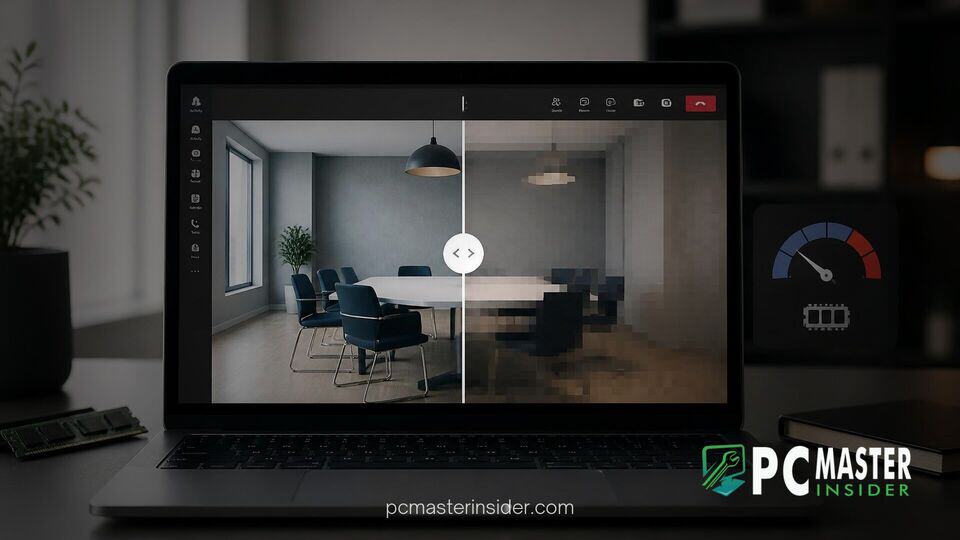
Microsoft has deployed an automated Efficiency Mode in the desktop client for Microsoft Teams, aiming to keep meetings responsive on lower-spec hardware. The feature dynamically throttles outgoing camera resolution and background processes when it detects hardware constraints, such as devices running on 8GB of system memory or older processors.
While the update helps prevent freezing, thermal throttling, and severe lag during intensive calls, users on entry-level machines may notice a visible drop in video clarity. Microsoft designed the trade-off to ensure core meeting features, such as real-time audio and screen sharing, remain uninterrupted even when system resources are stretched thin.
Overview of Microsoft Teams Efficiency Mode and 8GB RAM Video Resolution Scaling
The microsoft teams efficiency mode video resolution 8gb ram implementation activates by default on systems flagged as hardware-constrained. When triggered, a visual leaf indicator appears in the Teams title bar, signaling that resource-saving measures are actively managing processor and RAM allocation.
Instead of maintaining a continuous high-definition feed, Teams scales down camera output to conserve CPU cycles, network overhead, and local memory. In addition to throttling camera quality, Efficiency Mode alters how the desktop app launches. The client opens without pre-selecting a chat thread and displays a simple static image in the chat canvas to minimize startup overhead. Internal testing cited by Microsoft indicates that these optimizations allow the application to launch up to 20 percent faster on hardware-limited systems.
Resolution Adjustments on PCs with Limited Memory
Video processing is among the most resource-heavy tasks handled by desktop collaboration tools. Encoding live camera streams while applying real-time noise suppression, custom backgrounds, and gallery layouts strains integrated graphics chips and system memory. On a PC with 8GB of RAM, running Microsoft 365 services alongside web browsers quickly consumes available memory headroom.
When Efficiency Mode kicks in, Teams automatically reduces outgoing camera resolution down to lower standard formats. This dynamic drop lightens the encoding burden on the processor. By capping the resolution, the application avoids severe frame drops and camera preview delays that frequently occur when available memory falls below critical thresholds.
System Resource Savings vs Video Clarity Trade-Offs
The automated throttling mechanism presents a clear trade-off between visual quality and system stability. Users with entry-level laptops or older desktop builds benefit from smoother overall system responsiveness during video calls. Audio streams are less prone to robotizing, and multitasking between documents or browser tabs becomes noticeably faster.
However, the reduction in stream quality means outgoing feeds may appear softer or slightly pixelated to other meeting participants. For professionals who rely on crisp webcam presentation during client calls, this background adjustment can present an unwelcome surprise if they are unaware that Efficiency Mode is actively running.
Performance Challenges of Non-Native Windows Apps
The necessity for Efficiency Mode highlights an ongoing architectural debate regarding modern desktop productivity software. The current Microsoft Teams client relies heavily on web-based runtime frameworks like WebView2. While cross-platform web frameworks allow engineering teams to ship features simultaneously across operating systems, web container architectures inherently consume more memory than traditional native software.
Multiple background sub-processes managed by web runtimes continuously consume system memory. Despite recent platform optimizations, running desktop apps built on web technology alongside native operating system services demands significant hardware resources. Microsoft has introduced native controls elsewhere in the OS, such as lightweight WinUI interface elements, but complex tools like Teams remain reliant on web engines. As a result, software-driven resource throttles remain the primary method for maintaining performance on 8GB RAM devices.
Workarounds and Recommendations for Video Calls
Users who require high-definition camera feeds despite working on hardware-constrained systems can adjust Efficiency Mode manually within the application. Microsoft provides granular toggle controls inside the application settings:
- Never use efficiency mode: Forces Teams to prioritize maximum visual quality and camera resolution, utilizing all available CPU and RAM resources.
- Use only when resources are low (Default): Automatically engages video resolution scaling and resource throttling only when system load or RAM usage spikes.
- Always use efficiency mode: Permanently caps resource usage to ensure maximum battery life and hardware responsiveness.
To disable the feature, users can navigate to Settings > General in Teams and select Never use efficiency mode. IT administrators can also manage performance behaviors across corporate fleets by configuring endpoint management templates in Microsoft Intune policies.
For users on 8GB systems who choose to turn off Efficiency Mode, closing resource-heavy web browser tabs, disabling background blur filters, and quitting unneeded startup programs before joining important video meetings can help preserve system memory without degrading camera resolution.
Microsoft Teams Efficiency Mode provides a practical stopgap for users operating on entry-level hardware. While lowering camera resolution may not be ideal for every scenario, it ensures that basic communication remains functional on low-RAM machines.