Microsoft has begun rolling out a new interface theme for Outlook on the web and the new Outlook for Windows that mimics the visual layout of classic Outlook. The optional setting is designed to ease the transition for enterprise and personal users who have been reluctant to adapt to the modernized app interface.
The feature is rolling out in stages through autumn, allowing users to toggle a traditional skin mode on or off while retaining the underlying web-based architecture of the new platform.
Microsoft Introduces Classic Outlook Interface Option for New Outlook
As Microsoft continues its push toward a unified, web-based email client built on WebView2 technology, the tech giant has faced ongoing friction from long-time users accustomed to the desktop Win32 application. To bridge this gap, Microsoft is introducing a native visual option referred to in settings as the Microsoft New Outlook Classic Outlook skin mode.
According to an update published in the Microsoft 365 Message Center, the new setting applies coordinated visual changes across the application. While the underlying application mechanics remain identical to the web-based client, the visual layer rearranges elements to mirror the familiar environment that millions of enterprise users have relied on for decades.
Visual and Layout Changes in the Classic Skin Mode
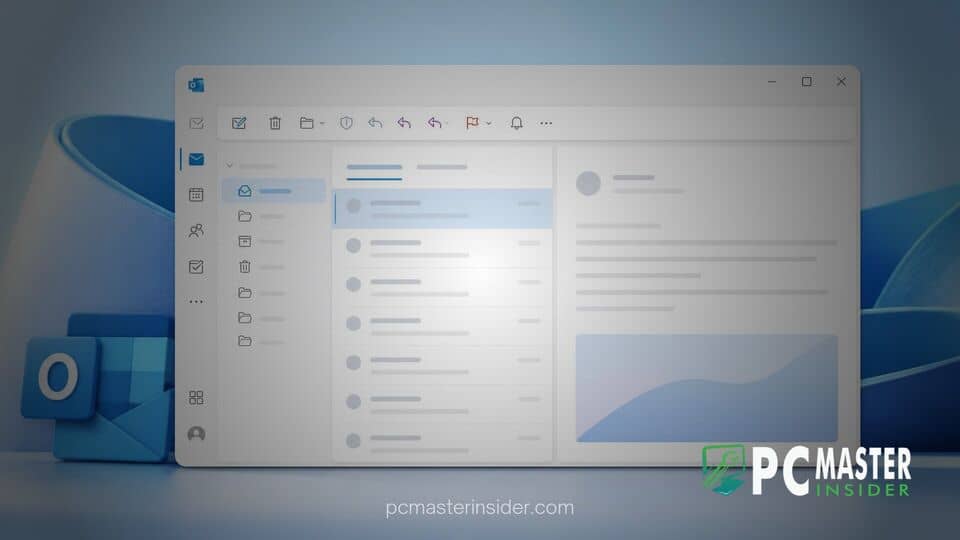
When users toggle the classic theme, the interface applies subtle yet distinct aesthetic updates designed to recall the traditional desktop app. Key updates include adjustments to visual styling, modified spacing and layout density, re-styled icons, updated typography, and familiar placement for core navigation controls.
However, industry analysts note that the update is purely cosmetic. Because the new Outlook app operates on a different codebase than classic Outlook, turning on the classic skin mode does not restore legacy backend capabilities. Features exclusive to classic Outlook, such as extensive COM or VSTO add-in support, Visual Basic for Applications (VBA) automation, and specific offline data management workflows, remain unavailable within the modern client.
Addressing Enterprise User Resistance to the Web-Based Outlook Migration
The introduction of the classic theme comes as Microsoft addresses pushback from enterprise IT administrators and corporate end users. Since Microsoft introduced the preview of the new Outlook for Windows, feedback from business environments has highlighted frustration over the steep design curve and the loss of familiar desktop layouts.
Microsoft originally planned a faster migration pipeline but extended the support lifecycle for classic Outlook for Windows into early 2029 to give enterprise customers ample time to transition. Offering a classic visual skin represents a middle ground, allowing organizations to deploy the newer app architecture without disorienting employees who prefer the legacy layout.
In its official documentation, Microsoft explained that the update is meant to assist users who are transitioning from classic Outlook by providing a more recognizable interface. By reducing the visual shock of moving to a web-centric UI, Microsoft hopes to accelerate adoption across corporate networks.
Deployment Timeline and How Admins Can Enable the Classic Theme
The phased rollout of the classic theme began in mid-August for Targeted Release tenants. Microsoft expects the feature to reach general availability for worldwide commercial and personal accounts between late September and late October.
For most users, the classic theme will be turned off by default, but it can be manually enabled by opening the application, navigating to Settings, clicking General, selecting Appearance, and toggling the Outlook Classic option. During initial migration phases, Microsoft may automatically enable the classic setting for select users moving from classic Outlook to ease their immediate onboarding, though those individuals can revert to the modern view at any time.
Importantly for IT departments, the deployment of this interface setting requires no administrative action and will not override existing policy configurations or force automatic account migrations. Organizations can continue running classic Outlook and the new Outlook app side-by-side as they evaluate overall readiness for the full platform transition.
By combining modern web feature updates with a nostalgic aesthetic layer, Microsoft aims to make its newest email experience feel comfortable to even its most hesitant legacy users.