
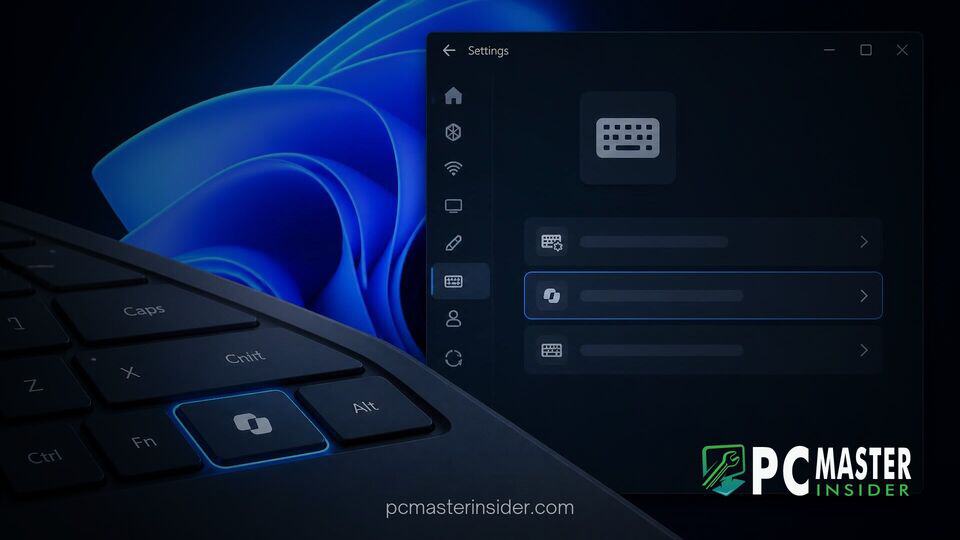
When Microsoft introduced dedicated Copilot hardware keys on new Windows 11 laptops and Copilot+ PCs, it aimed to streamline access to AI assistance. However, for millions of power users, developers, and touch typists, this hardware change created a major inconvenience. On many laptop layouts, the dedicated Copilot key replaced essential controls such as the Right Ctrl key or the traditional Context Menu key. Accidentally pressing this dedicated hardware button during high-speed typing sessions or code editing often interrupts your flow by launching AI overlays instead of executing your intended keyboard shortcuts.
Fortunately, Microsoft has introduced native options directly into Windows 11 to address this exact frustration. Users can now customize or override the physical key without needing complex third-party system hacks. If you want to know how to remap copilot key windows 11 setups feature, this tutorial provides clear step-by-step instructions for both native system settings and advanced software remapping methods.
What You Will Learn in This Guide
In this tutorial, you will discover how to reconfigure your Windows 11 hardware controls to fit your personal workflow. Specifically, this guide covers:
- Understanding hardware and system requirements for native Copilot key remapping.
- Locating native control options within the Windows 11 Settings menu.
- Changing the physical key function to behave as Right Ctrl, Context Menu, or custom apps.
- Utilizing advanced tools like Microsoft PowerToys for custom hotkeys and key combinations.
- Troubleshooting driver conflicts, missing settings, and unresponsive key behaviors.
Prerequisites for Remapping the Copilot Key
Supported Windows 11 Versions and Keyboard Requirements
Before modifying your system configuration, ensure your PC meets the necessary system update levels and hardware specifications. Microsoft rolled out built-in Copilot key customization through cumulative updates for recent Windows 11 releases.
1. Verify System Build Version
To access native keyboard settings, your PC must be running updated builds of Windows 11 Version 23H2, 24H2, or later. Press Win + R to open the Run dialog, type winver, and press Enter. If your PC is behind on cumulative security patches, navigate to Settings > Windows Update and install all pending updates. Similar to how Windows 11 deployment expands to eligible PCs, keeping your operating system updated ensures access to the latest UI switches.
2. Confirm Physical Hardware Support
Verify that your laptop or external keyboard features a physical Copilot logo key. Native settings apply directly to hardware devices designed with this specific key signal. If you are using a standard keyboard without a physical Copilot key, Windows 11 Settings may hide the customization options.
Step-by-Step Guide to Customizing the Copilot Key
Windows 11 now provides native options to reassign the physical key directly from the main Settings dashboard. Follow these steps to access and reconfigure the key.
Assigning Alternative Shortcuts and Functions
1. Open Windows 11 Settings
Press Win + I on your keyboard to open the main system settings dashboard. Alternatively, right-click the Start button and select Settings from the quick link menu.
2. Navigate to Keyboard Settings
In the left-hand navigation pane, click on Bluetooth & devices. Scroll down the right pane and select the Keyboard tile.
3. Locate Copilot Key Customization Options
Look for the section labeled Shortcuts & hotkeys or Customize Copilot key on keyboard. By default, the drop-down menu is assigned to trigger the native Copilot application.
4. Select Your Preferred Key Role
Click the drop-down menu adjacent to the Copilot key setting. You can select from several options depending on your workflow preferences:
- Right Ctrl: Restores standard modifier key behavior for quick keyboard combinations.
- Context Menu: Re-enables the dedicated right-click menu key function.
- Search: Reassigns the button to open Windows Search.
- Custom / App: Selects an installed MSIX-packaged app to launch whenever the key is pressed.
Advanced Remapping with Microsoft PowerToys
If you require custom shortcut execution—such as remapping the key to trigger Alt + Tab or custom script shortcuts—the built-in Windows Settings menu may feel limited. In these cases, Microsoft PowerToys provides granular control. Under the hood, hardware manufacturers map the physical Copilot key as a combined virtual key sequence: Left Win + Left Shift + F23. PowerToys allows you to intercept this sequence smoothly.
Using PowerToys Keyboard Manager
1. Download and Install Microsoft PowerToys
Open the Microsoft Store, search for Microsoft PowerToys, and click Install. Alternatively, open Terminal or Command Prompt and run the following command:
winget install --id Microsoft.PowerToys --source winget2. Enable Keyboard Manager
Launch the PowerToys application from your Start menu. From the left sidebar, navigate to Keyboard Manager and ensure the Enable Keyboard Manager toggle is turned On.
3. Map the Key Sequence
Click Remap a shortcut. Click the + Add shortcut remapping button. Under the Physical Shortcut section, click the pencil icon, then physically press your keyboard's Copilot key. PowerToys will detect the underlying Win + Shift + F23 combination. Under the Mapped To section, select the exact key or hotkey combination you wish to activate instead, then click OK to confirm.
This technique provides flexibility similar to how users manage system shortcuts when Microsoft evaluates Windows key behaviors across updated desktop shells.
Troubleshooting Copilot Key Remapping Issues
If changing the settings does not immediately alter key behavior or if custom shortcuts fail, try the following troubleshooting steps.
Resolving Unresponsive Remaps and Keyboard Driver Conflicts
1. Update System Drivers
Hardware OEMs release firmware updates that control how keyboard signals translate to the OS. Open Device Manager by pressing Win + X and selecting Device Manager. Expand Keyboards, right-click your active system keyboard, and select Update driver. Additionally, check your laptop manufacturer's software (such as Lenovo Vantage, Dell Command, or HP Support Assistant) for pending keyboard firmware updates.
2. Run SFC Tool
Corrupted system files can prevent Windows Settings from persisting key modification registry flags. To fix underlying file corruption, follow these steps:
- Press Win + S, type
cmd, right-click Command Prompt, and select Run as administrator. - In the terminal window, type the following command and press Enter:
sfc /scannowWait for the scan to finish repairing system files, then restart your PC and attempt key remapping again.
3. Verify Software Conflicts
Certain background tools, gaming software suites, or security utilities can intercept keyboard hooks before Windows Settings registers them. Temporarily disable background macro utilities or software like Razer Synapse or Corsair iCUE to ensure clean signal handoffs. Just as unexpected software behaviors occur when update issues impact system files, background software hooks can prevent low-level key remapping from holding across reboots.
Tips and Best Practices for Key Remapping
To maintain a smooth typing experience and prevent unexpected input behavior, keep these best practices in mind:
- Use Native Settings First: Always try remapping through Settings > Bluetooth & devices > Keyboard before relying on third-party utilities. Native remapping uses fewer background system resources and remains active across user account switches.
- Mind Left vs. Right Modifier Combinations: If you remap the physical key to Right Ctrl, remember that hardware limitations may affect complex hotkeys like Right Ctrl + Win. For critical system shortcuts, rely primarily on the Left Ctrl key.
- Keep PowerToys Updated: If you choose PowerToys for custom shortcut routines, keep the application set to auto-update. Microsoft regularly updates Keyboard Manager to maintain compatibility with new Windows 11 updates.
- Backup Custom Configurations: If you configure complex key remapping routines in PowerToys, export your settings backup file so you can restore your customized workflow effortlessly after major system upgrades or clean OS reinstalls.



